Skapa och hantera optioner
Du kan lägga till optioner i Avtalsblanketten med knappen Lägg till... . Välj optionstyp i rullgardinsmenyn
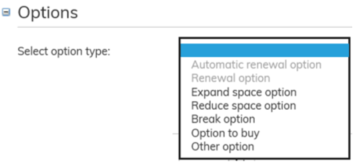
Fyll i information som gäller optionerna i blanketten.
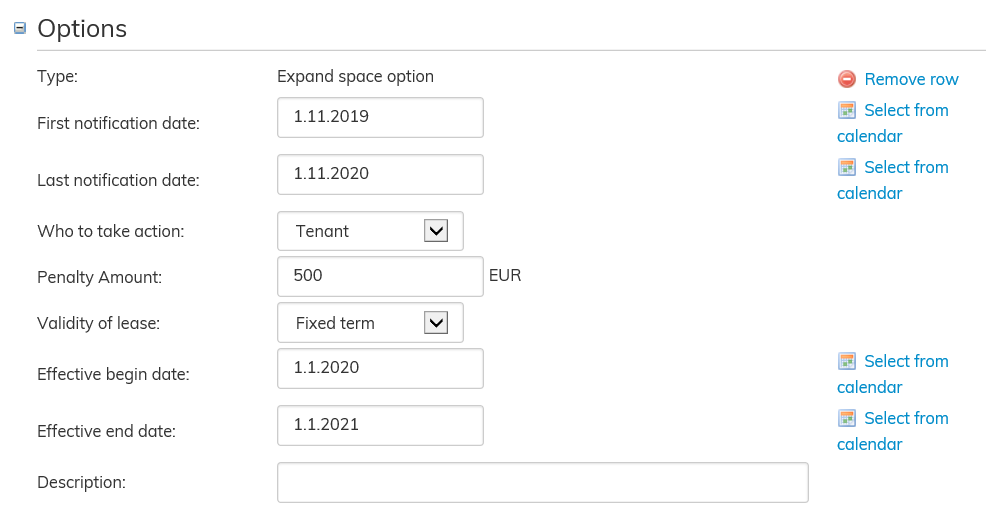
Du kan själv skriva datumen eller välja dem ur kalendern.
Välj användningsdagar för optionen. Alla optioner har en första och sista nyttjandedag, som definierar datumgränserna för optionernas godkännande. Optionen måste godkännas inom detta tidsintervall för att den ska träda i kraft på optionens första giltighetsdag.
Välj ansvarspart i rullgardinsmenyn: hyresgästen, hyresvärden eller båda.
Välj giltighet för förnyelseoptionen i rullgardinsmenyn. Optioner som gäller på viss tid kräver både ett startdatum och ett slutdatum. Optioner som gäller tills vidare behöver ett uppsägningsvillkor. Om uppsägningsvillkoret är en uppsägningstid, ange både hyresgästens och hyresvärdens uppsägningstid.
För alla optioner kan du ange kostnader, som uppstår av optionens nyttjande eller icke-nyttjande. Dessa avgifter överförs inte till faktureringen.
Ändringarna sparas automatiskt om avtalet redan har sparats och det redigeras. När du har matat in optionerna, klicka på Tillbaka. Om det handlar om ett nytt avtal, ska avtalet sparas.
När avtalet har godkänts, visas optionerna på fliken Optioner i avtalets samlingsblankett.
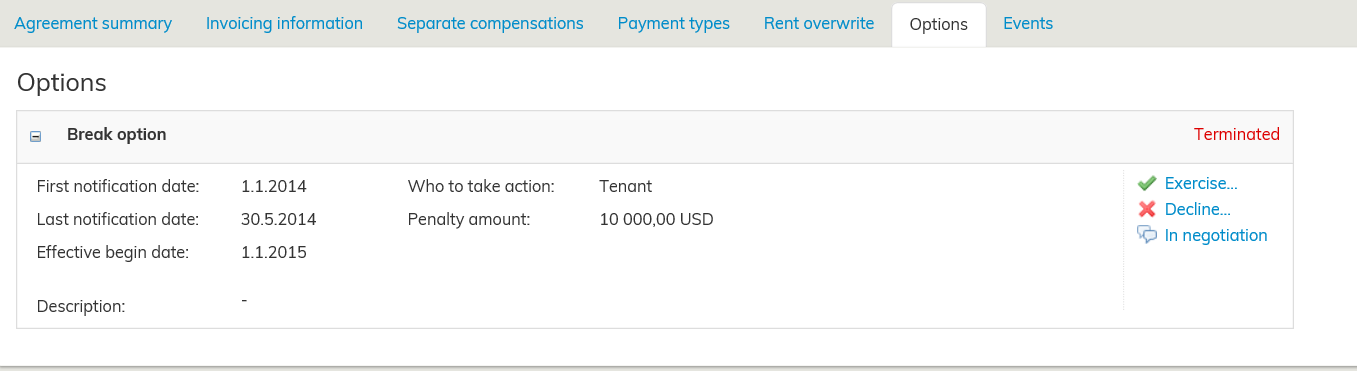
Du kan godkänna eller förkasta en option på fliken Optioner. Du kan också ange dess status som Kan förhandlas, om besluten i anslutning till optionen inte ännu fattats. Detta returnerar optionen till sin ursprungliga status.
Optionens status kan vara
Till förfogande; optionens ursprungliga status när den skapades. Kan förhandlas; användaren har försatt optionen i uppföljning. Godkänd; optionen är godkänd och giltig.
Förkastad; optionen har annullerats av användaren, varvid den inte längre påverkar några funktioner.
Avslutad; optionens nyttjandemöjlighet har gått ut, men optionen kan fortfarande hanteras som en aktiv option.
Blockerad; optionens nyttjande har blockerats av en annan godkänd option, eftersom datumen överlappar varandra eller den andra optionen blockerar funktionen till följd av någon annan regel.
Automatisk förnyelseoption och förnyelseoption
Med hjälp av förlängningsoptioner kan avtalet ges flera separata giltighetstider. Avtalet tilldelas förnyelseoptioner som antingen gäller på viss tid eller tills vidare. Förnyelseoptionerna måste godkännas mellan den första och den sista nyttjandedagen för att de ska träda i kraft på den fastställda första giltighetsdagen.
En automatisk förnyelseoption godkänns i samband med avtalets godkännande. Då fortsätter avtalet automatiskt efter slutdatumet. På samlingsblanketten syns den automatiska förnyelseoptionen för hela tiden dvs. avtalets slutdatum är förnyelseoptionens slutdatum. Lokalerna reserveras också för förnyelseoptionens tid. Man kan mata in flera optioner som förnyas automatiskt efter varandra.
Ifall optionen inte börjar på följande dag efter avtalet eller en annan godkänd option, är optionen blockerad. En option är också blockerad om optionens datum överlappar en annan godkänd option.
Med hjälp av en (icke-automatisk) förnyelseoption förnyas avtalet manuellt efter att avtalet har gått ut. Man kan ange att avtalet fortsätter tills vidare eller på viss tid efter slutdatumet.
När du godkänner en förnyelseoption ber programmet dig bekräfta att du vill godkänna optionen. Dessutom påminner programmet dig om att du måste upprätta ett hyresändringsdokument om avtalets hyra ändras i samband med optionens godkännande. Skapa hyresändringsdokumentet i vyn för avtalets basdata.
Option för ökning eller minskning av hyresområde
Med öknings- eller minskningsoptionen för hyresområden kan man under avtalets giltighetstid öka eller minska hyresområdena som hör till avtalet. Optionen ges ett start- och slutdatum. Optionen för ökning eller minskning av hyresområdet måste godkännas under tiden mellan den första och den sista nyttjandedagen.
När du godkänner en öknings- eller minskningsoption ber programmet dig bekräfta att du vill godkänna optionen. I samband med ändring av lokalerna bör ett ändringsdokument upprättas för avtalet. Skapa ändringsdokumentet i vyn Avtalets basdata. Med ändringsdokumentet minskar eller ökar du avtalets lokaler. Du kan alltså inte minska eller öka hyresområdet genom att enbart godkänna optionen.
Option för tidigare avslutande av avtalet
Avtalet kan förses med en option för tidigare avslutande av avtalet. Då kan avtalet sägas upp under sin giltighetstid. Optionen markerar avtalet som uppsagt, så du kan endast godkänna en option i taget.
För optionen väljs en första och sista nyttjandedag, då den kan godkännas. Optionens första giltighetsdag definierar när man vill säga upp avtalet.
Optionen måste ändå godkännas innan avtalets egentliga uppsägningsdag kan fastställas.
När du godkänner optionen, ber programmet dig ange datum då avtalet upphör. Ange dag och godkänn ändringen. Bekräfta att du vill avsluta avtalet. Avtalet sägs alltså inte automatiskt upp enbart genom att man definieras optionens första giltighetsdag.
Inköpsoption
Godkännande av inköpsoptionen innebär att avtalet sägs upp. På så sätt kan du godkänna bara en inköpsoption i taget.
För optionen väljs första och sista nyttjandedag, under vilken tid inköpsoptionen kan godkännas. Optionens första giltighetsdag definierar när man vill säga upp avtalet. Inköpsoptionen måste ändå godkännas innan avtalets egentliga uppsägningsdag kan fastställas.
När du godkänner optionen, ber programmet dig ange datum då avtalet upphör. Ange dag och godkänn ändringen. Bekräfta att du vill avsluta avtalet. Avtalet sägs alltså inte automatiskt upp enbart genom att man definieras optionens första giltighetsdag.
Annan option
Dessutom kan användaren fritt ange och namnge andra optioner.
Det kan finnas flera andra optioner.
Creating and managing options
You can add options from the agreement form by clicking on Add... Select the option type from the pull-down menu.
Enter the option information on the agreement form.
You can enter the dates or select them from the calendar.
Choose notification dates for the option. All options have first and last notification date, which allow you to define the timeline for the use of the option in question.
The option must be exercised during these days, so that it will become effective on the effective begin date specified.
Select the party who is to take action from the pull-down menu: Tenant, Lessor or Mutual.
For renewal options, select the validity of lease from the pull-down menu. A fixed-term validity requires an effective end date as well as an effective begin date. A validity until further notice requires a term of notice. If the term of notice is a period of notice, enter the period of notice for the tenant and the lessor.
A penalty amount can be set for all options for exercising or declining the option. These penalty fees are not included in invoicing.
If the agreement has already been saved and it is now being edited, all changes are saved automatically. Once you have entered all option information, click Back.
If the agreement being edited is a new one, save your changes before closing.
When the agreement has been finalized, options can be viewed in the agreement summary page on the Options tab.
You can exercise or decline an option on the Options tab. You may also set the option state as In negotiation, if the decision is yet to be made, or reset the option to its original state.
The option state can be the following:
- Active: this is the initial state after the option has been created.
- In negotiation: a user has defined the option as being in negotiation.
- Exercised: the option has been exercised and is in effect.
- Declined: the option has been declined by a user and has no more effect on any functionality.
- Terminated: the last date for exercising the option has passed, but the option can still be treated like an active option.
- Obstructed: the option is prevented from being exercised by some other exercised option, due to conflicting dates, or because another option is preventing the functionality in some other way.
Automatic renewal option and renewal option
By means of renewal options, an agreement can be given several distinct periods of validity. The agreement is given renewal options that are either fixed-term or valid until further notice. Renewal options must be exercised during the first and the last notification date, in order to become effective on the effective begin date specified.
An automatic renewal option will be exercised when accepting the agreement. In this case, the agreement automatically continues after the lease term end date. On the agreement summary page, an automatic renewal option is included in the term of validity, i.e. the agreement end date shown is the renewal option end date. The rental areas are reserved also for the term of validity of the renewal option. An agreement can have several consecutive automatic renewal options.
If the option term does not begin on the day after the agreement or another option ends, the option is obstructed. An option is also obstructed, when its dates are in conflict with another option that has been exercised.
A (non-automatic) renewal option can be exercised to manually continue the agreement after the term of validity ends. The agreement can be set to continue after the term of validity either as fixed-term or until further notice. When exercising a renewal option, the system confirms that you wish to exercise the option. In addition, the system reminds you to create a rent correction document, if the rent changes upon exercising the option. Create a rent correction document from the agreement’s basic information view.
Option to expand or reduce space
With the option to expand or reduce space you can expand or reduce rental areas included in the agreement. Select the first and last notification date and define the timeline for exercising the option. You need to exercise the option to expand or reduce space during its effective begin and end dates.
When exercising an option to expand or reduce space, the system confirms that you wish to exercise the option. A change document must be created for the agreement when expanding or reducing space. Create a change document from the agreement’s basic information view. Spaces are added to the agreement or removed from it with the change document. Just exercising the option does not reduce or expand the rental area.
Break option
The agreement can be given a break option. This means that agreement can be terminated during the agreement term. Exercising the option terminates the agreement, so you can only exercise one option at a time.
Select the first and last notification date and define the timeline for exercising the option. Effective begin date allows you to determine when you wish to terminate an agreement. The option must be exercised, before you can specify the actual termination date of the agreement.
When exercising the option, the system prompts you for the date of termination. Enter the date and finalize the change. Finally, confirm that you wish to terminate the agreement. Just setting the effective begin date for the option, does not automatically terminate the agreement
Option to buy
Exercising an option to buy terminates the agreement, so you can only exercise one option to buy at a time.
Select the first and last notification date and determine the timeline for exercising the option to buy. Effective begin date allows you to determine when you wish to terminate an agreement. The option to buy must be exercised, before you can specify the actual termination date of the agreement.
When exercising the option, the system prompts you for the date of termination. Enter the date and finalize the change. Finally, confirm that you wish to terminate the agreement. Just setting the effective begin date for the option, does not automatically terminate the agreement.
Other option
In addition to the options listed above, a user can enter and name other options for the agreement. An agreement can have several other options.