Budgetmallen är ett budgeteringsverktyg i Optimaze där själva budgeteringen utförs. Rapals ekonomisupport skapar budgetmallen baserat på de uppgifter som kunden vill använda.
Val av uppgifter till budgetmall
Till en början finns det skäl att fundera över vilka grundläggande uppgifter man vill använda när man skapar budgeten. I Optimaze-systemet är det möjligt att budgetera lokalkostnader med flera olika utgångsdata. I budgeteringen kan man utnyttja föregående års budget i programmet eller debiterings- eller utfallsuppgifter. Vid användning av utgångsdata för utfalls- och debiteringsuppgifterna kan du vid behov använda utfallen för en eller flera månader.
I Optimaze är det även möjligt att importera budgetuppgifterna med en Excel-fil. I sådana fall måste filen innehålla uppgifterna i rader om objektet, kontot och eurobeloppet. Om du vill kan du även öppna en tom budgetmall, som inte innehåller några som helst kostnader. I sådana fall matas budgetkostnaderna i från början i budgetmallen.
När du har beslutat vilka uppgifter som ska användas som grundläggande uppgifter i budgeten, ska du be Rapals ekonomisupport att skapa en budgetmall med de önskade uppgifterna. Meddelanden till Rapals ekonomistöd skickar du med supportknappen högst upp till höger i Moment eller via e-post: tuki@optimaze.net.
Budgetering med budgeteringsverktyget
Av de önskade uppgifterna skapar Rapals ekonomistöd en budgetmall, där bearbetningen av budgeten sker.
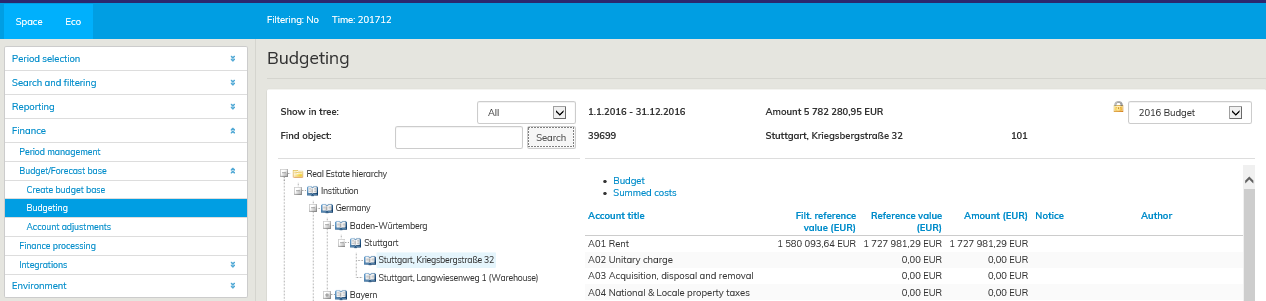
Budgetmallen finns på Ekosidan, under rubriken Budgetering.
Obs! Val av period finns nu högst upp till höger i Budgeteringsverktyget och där ser du vilken budgetmall du redigerar.
Du kan endast redigera en aktiv och öppen budgetmall. När budgetperioden har körts och låsts, går den inte längre att bearbeta. Om det ännu uppstår behov av att ändra kostnaderna, kan perioden öppnas och köras på nytt. Om du vill spara uppgifterna från en redan körd version, finns det skäl att skapa en ny period med den körda periodens uppgifter.
Budgeteringsverktygets summor och rubriker
Verktyget Budgetmall visar alltid eurobeloppen för nivån som valts till vänster i objektsträdet. På bilden nedan visas kostnaderna för Panorama Towers byggnad.
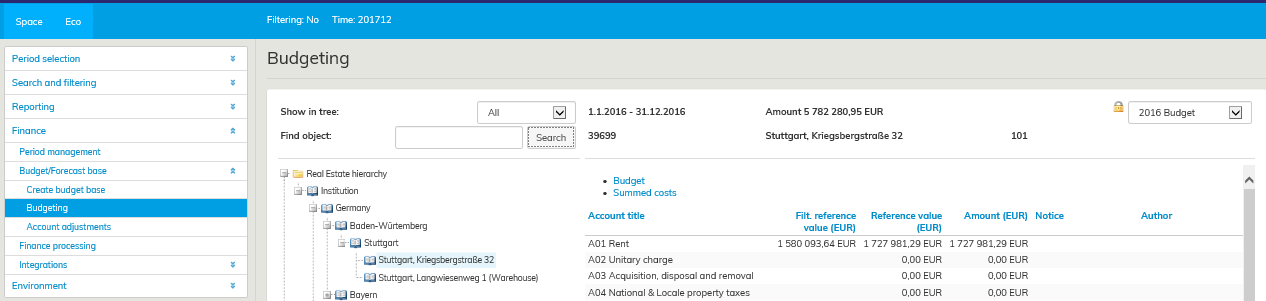
Under rubriken Budgetering visas uppgifterna för hela Budgeten och där finns även en sökfunktion, som fungerar på samma sätt som Optimazes övriga sökverktyg. De blåfärgade Budget och Summerade kostnader byter vy, så att man i vyn Budget gör de faktiska redigeringarna i budgeten och i vyn Summerade kostnader visas kostnaderna för den valda nivån. I summeringen visas med andra ord summerade kostnader från också andra nivåer för det aktuella objektet.
Först till vänster i de blåfärgade rubrikerna i vyn Budget finns Kontonamnet, som uppger vilka kostnader som visas på raden. Rubriken A01 Hyror, som visas högst upp, innehåller kostnaderna för alla konton som finns under detta kontonamn.
Det filtrerade jämförelsevärdet i kolumnen Program visar som stöd i budgeteringen kostnaderna för perioden som valts i periodvalet på Ekosidan. Genom att sväva med muspekaren över rubriken Filtr. referensvärde i budgetmallen ser du vilken periods uppgifter som används som referensvärde.
Om du vill byta uppgifterna för en annan period till det filtrerade referensvärdet. Välj den önskade perioden från fliken Eko i menyn Val av period. Om du till exempel vill jämföra de kostnader som nu budgeteras med föregående års budget, är det smidigt att välja att visa föregående års budget.
I kolumnen Referensvärde visas de kostnader som importerats som grundläggande uppgifter för den här budgeten. Denna summa förändras inte då budgeten redigeras, utan du kan när som helst jämföra de slutgiltiga kostnaderna som budgeteras med de grundläggande uppgifterna i kolumnen Saldo. Före redigeringen visas samma summa i kolumnen Saldo som i kolumnen Referensvärde, det vill säga summan som vid kopieringen importerats till objektet. Summan i kolumnen Saldo ändras efter siffrorna som redigeras i budgeten.
Summorna på fliken Summerade kostnader uppdateras samtidigt som budgeteraren redigerar siffrorna på fliken Budget. Om budgeteraren matar in kostnader till exempel för delar av byggnaden, kan hen enkelt kontrollera hela byggnadens kostnader på fliken Summerade kostnader.
Om man vill budgetera till kontonamn som inte finns i Optimaze Moments kontoplan, ska dessa meddelas
till Rapals support, som lägger till de nya kontonamnen i Kontohierarkin.
I budgeteringsverktyget är det möjligt att förhindra redigering av konton som valts kundspecifikt i användargränssnittet. Denna funktion är behändig till exempel i situationer där systemet beräknar saldona för valda konton.
När objektet inte är giltigt under budgetperiodens hela tidsperiod
Om objektet är giltigt endast en del av budgetperioden, visas detta med röd varseltext i objektets budgeteringsvy.
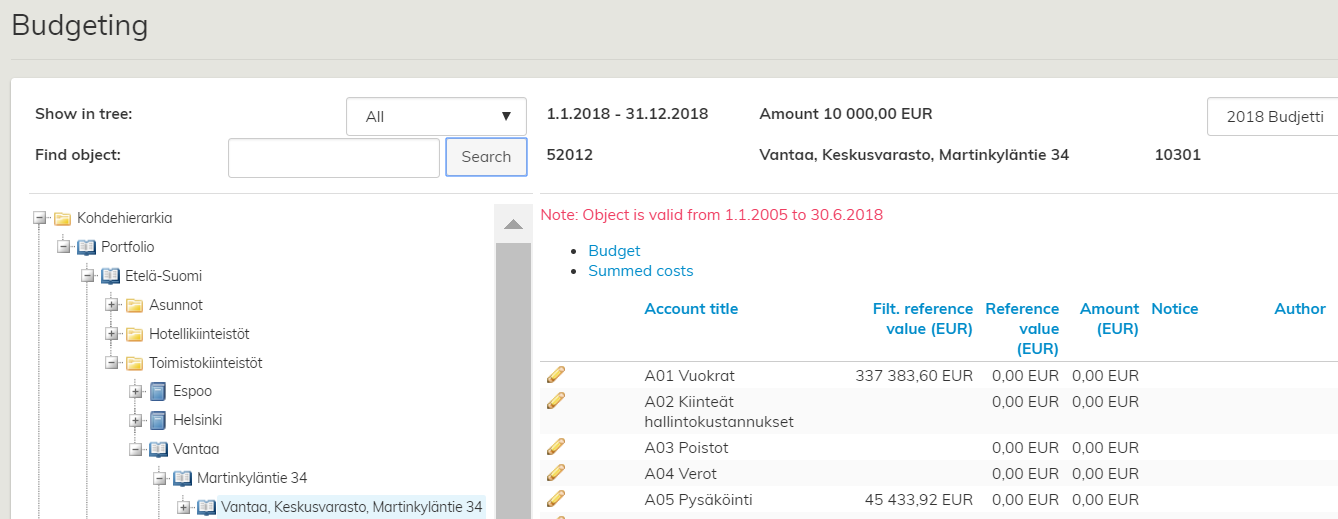
Ett objekt som är giltigt en del av året, visas med röd text i budgetmallen.
Objektets giltighet endast en del av tiden bör beaktas vid inmatning av budgetsiffror. Programmet importerar referensvärdet för hela året och budgeteraren måste beräkna giltighetstidens andel av det.
Inmatning av budgetsiffror i budgetmallen
Redigering av sifforna i budgeten sker med redigeringsverktyget, vars symbol är 
Genom att trycka på knappen Redigera får du åtkomst till att bearbeta den aktuella kontonamnsraden.

När du har redigerat siffrorna och skrivit en valfri anmärkning, ska du trycka på någon av knapparna Spara  eller Tillbaka

A budget template is a budgeting tool in Optimaze, and it is where the actual budgeting takes place. Rapal’s financial support creates the budget template based on the information the customer wishes to use.
Selecting data for the budget base
First, you should consider what information you wish to use as a basis for creating the budget. In the Optimaze system, it is possible to budget occupancy costs with various source data. In budgeting, it is possible to utilize the budget from a previous year that is processed in the software, or the charging or actual periods information. When using the realization or charging information as a basis, it might be required to use the realization data from one month or more.
It is also possible to import budget data to Optimaze with an Excel file. Information on the site, account and amount in euros must then be included in separate rows. If required, it is possible to open a blank budget template that does not include any costs. In this case, the budget costs must be entered in the budget template from the beginning.
When you have decided which information is used as a basis for the budget, Rapal’s financial support can be requested to create the budget based on the desired information. Send notification to Rapal’s financial support at: tuki@optimaze.net.
Budgeting with the budgeting tool
Rapal’s financial support creates a budget template based on desired information. The budget itself is then edited in the template.
You can find a budget template under Budgeting in the Eco section.
Note! Selecting the period is now on the upper right-hand corner of the budgeting tool. You can check from there what budget template you are editing.
You can only edit an active and open budget template. When the budget period has been run and locked, it can no longer be edited. If you still need to change some of the costs, you can unlock and run the period again. If you do not want to lose the information in the already run version, you should create another period based on the information on the period already run.
Totals and headers in the budgeting tool
The budget template tool always displays the euros in the level selected from the real estate hierarchy on the left. The building costs of Panorama Tower are illustrated below.
Under Budgeting header, you can see the information of the entire budget. There is also a search function that can be used like all search tools in Optimize. By clicking on Budget or Total costs in blue, you can switch between views. In the Budget view, the budget can be edited, while in Total costs view, you can review the costs allocated to the selected level. The total costs include also other costs added to the particular site from other levels.
In the Budget view, the first header on the left in blue is Account title, which shows what types of costs are shown in the row. The header A01 Rents on top covers all of the costs under this account title.
In the Filtered reference value column, the software shows the costs for the period selected under period selection in the Eco section to facilitate budgeting. If you want to use information of another period as the filtered reference value, select the desired period from Period selection menu in the Eco tab. For example, if you want to compare budgeted costs from this year to the budget from the previous year, you can choose to display the budget from the previous year.
The costs imported as a basis for this budget are shown in the Reference value column. This value does not change when the budget is edited, so you can compare the final budgeted costs in the Balance column with the base information at any time. Before editing, the total value shown in the Balance column is the same as the one in the Reference value column. The total in the Balance column changes as you edit the figures in the budget.
The totals in the Total costs tab are updated according to the changes made to the figures in the Budget tab. If the budgeter enters costs for building blocks, for example, he or she can easily review the total costs of the entire building in the Total costs tab.
If you wish to budget for account titles that are not found from the account map in Optimaze Moment, you need to notify Rapal support about them. They then add the missing account titles in the account hierarchy.
When a site is not valid for the entire budget period
If a site is valid only for a certain time in the budget period, a notification written in red appears in the budgeting view.
A site that is valid only a part of the year is displayed in red in the budget template.
When entering budgeting figures, you need to take a partial validity of a site into account. The software shows the reference value for the entire year, so the budgeter needs to calculate what proportion belongs to the site according to its validity period.
Entering budgeting figures to the budget template
The figures in the budget are edited with the edit tool. The function is marked with the pen icon. By clicking the edit icon, you can start editing the selected account title row.
Once you have edited the figures and written a notification, select Save or Cancel by using the icons. There is no function for cancelling a change you have already saved, but you can enter the original amount again and save that.
The budget figures are entered as follows:
1. Go to the Eco tab and browse the main menu in the left: Finance – Budget/forecast template – Budgeting
2. Choose the correct budget template from the pull-down menu on the upper right corner. Choose the budget template for 2018, for example.
3. From the real estate hierarchy, choose the site whose costs you wish to edit.
| Tip |
|---|
You can use filtering with budgeting too. If the filtering option is used, the tree-like list shows only those sites selected for the filtering. |
...
In the illustration above, the rental cost has been modified. Fixed management costs are currently being edited and changes are saved by clicking the icon.
Budgeted costs for a specific organization
Budget costs can be entered for sites, as well as organizations, i.e. the users of spaces.
...
In the above example, an organization-specific rent of EUR 2,000 has been added in the budget for the accounting unit of Panorama Tower. Note! The organization in question needs to be placed in the particular building!
Thumbnails in the budget template
The budgeting tool in Optimaze includes various thumbnails to help in managing the budgeting process.
...