A budget template is a budgeting tool in Optimaze, and it is where the actual budgeting takes place. Rapal’s financial support creates the budget template based on the information the customer wishes to use.
Selecting data for the budget base
First, you should consider what information you wish to use as a basis for creating the budget. In the Optimaze system, it is possible to budget occupancy costs with various source data. In budgeting, it is possible to utilize the budget from a previous year that is processed in the software, or the charging or actual periods information. When using the realization or charging information as a basis, it might be required to use the realization data from one month or more.
It is also possible to import budget data to Optimaze with an Excel file. Information on the site, account and amount in euros must then be included in separate rows. If required, it is possible to open a blank budget template that does not include any costs. In this case, the budget costs must be entered in the budget template from the beginning.
When you have decided which information is used as a basis for the budget, Rapal’s financial support can be requested to create the budget based on the desired information. Send notification to Rapal’s financial support at: tuki@optimaze.net.
Budgeting with the budgeting tool
Rapal’s financial support creates a budget template based on desired information. The budget itself is then edited in the template.
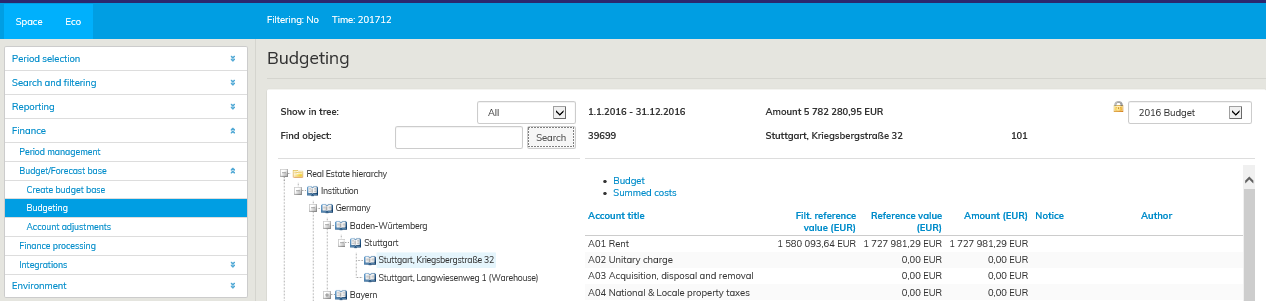
You can find a budget template under Budgeting in the Eco section.
Note! Selecting the period is now on the upper right-hand corner of the budgeting tool. You can check from there what budget template you are editing.
You can only edit an active and open budget template. When the budget period has been run and locked, it can no longer be edited. If you still need to change some of the costs, you can unlock and run the period again. If you do not want to lose the information in the already run version, you should create another period based on the information on the period already run.
Totals and headers in the budgeting tool
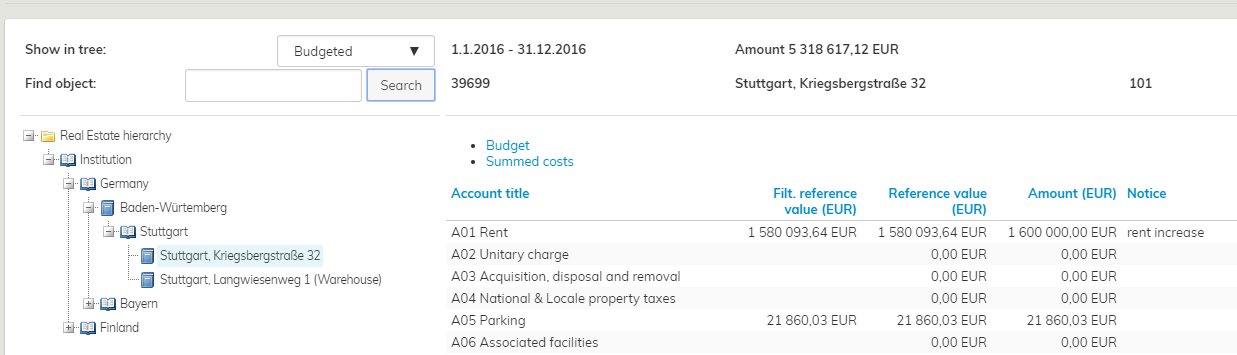
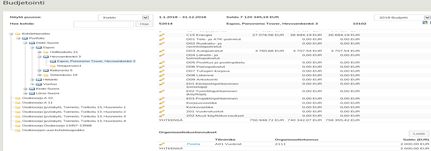
The budget template tool always displays the euros in the level selected from the real estate hierarchy on the left. The building costs of Panorama Tower are illustrated below.
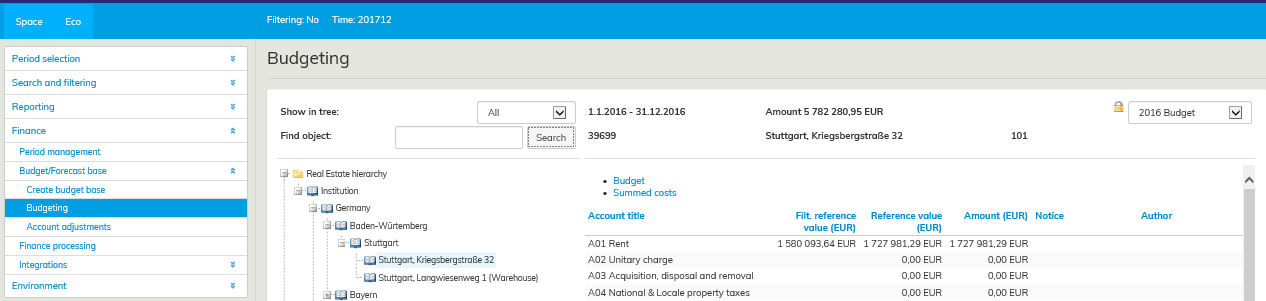
Under Budgeting header, you can see the information of the entire budget. There is also a search function that can be used like all search tools in Optimize. By clicking on Budget or Total costs in blue, you can switch between views. In the Budget view, the budget can be edited, while in Total costs view, you can review the costs allocated to the selected level. The total costs include also other costs added to the particular site from other levels.
In the Budget view, the first header on the left in blue is Account title, which shows what types of costs are shown in the row. The header A01 Rents on top covers all of the costs under this account title.
In the Filtered reference value column, the software shows the costs for the period selected under period selection in the Eco section to facilitate budgeting. If you want to use information of another period as the filtered reference value, select the desired period from Period selection menu in the Eco tab. For example, if you want to compare budgeted costs from this year to the budget from the previous year, you can choose to display the budget from the previous year.
The costs imported as a basis for this budget are shown in the Reference value column. This value does not change when the budget is edited, so you can compare the final budgeted costs in the Balance column with the base information at any time. Before editing, the total value shown in the Balance column is the same as the one in the Reference value column. The total in the Balance column changes as you edit the figures in the budget.
The totals in the Total costs tab are updated according to the changes made to the figures in the Budget tab. If the budgeter enters costs for building blocks, for example, he or she can easily review the total costs of the entire building in the Total costs tab.
If you wish to budget for account titles that are not found from the account map in Optimaze Moment, you need to notify Rapal support about them. They then add the missing account titles in the account hierarchy.
When a site is not valid for the entire budget period
If a site is valid only for a certain time in the budget period, a notification written in red appears in the budgeting view.
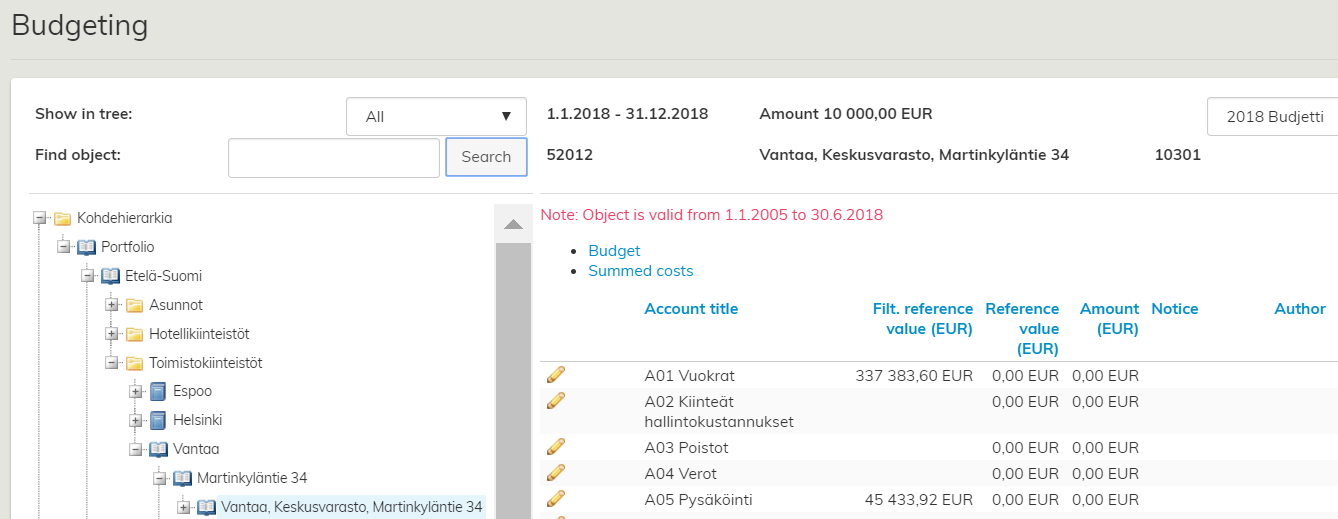
A site that is valid only a part of the year is displayed in red in the budget template.
When entering budgeting figures, you need to take a partial validity of a site into account. The software shows the reference value for the entire year, so the budgeter needs to calculate what proportion belongs to the site according to its validity period.
Entering budgeting figures to the budget template
The figures in the budget are edited with the edit tool. The function is marked with the pen icon. By clicking the edit icon, you can start editing the selected account title row.

Once you have edited the figures and written a notification, select Save  or Cancel
  by using the icons. There is no function for cancelling a change you have already saved, but you can enter the original amount again and save that.
The budget figures are entered as follows:
1. Go to the Eco tab and browse the main menu in the left: Finance – Budget/forecast template – Budgeting
2. Choose the correct budget template from the pull-down menu on the upper right corner. Choose the budget template for 2018, for example.
3. From the real estate hierarchy, choose the site whose costs you wish to edit.
| Tip |
|---|
You can use filtering with budgeting too. If the filtering option is used, the tree-like list shows only those sites selected for the filtering. |
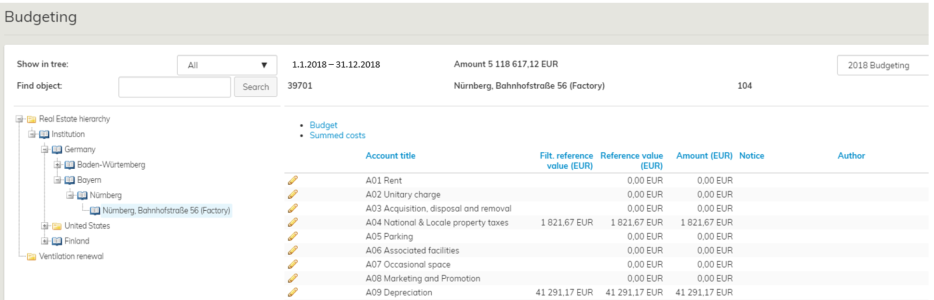
Budgeting view when the real estate hierarchy is filtered for Central Finland.
1. Select the edit icon next to the account title in the Budget tab, in order to access the balance column and edit costs. The budgeter can enter comments in the Notifications column to remind himself/herself of an increase, for example. In the author field, the system adds the name of the person, whose login credentials have been used to access Moment. Also the date of processing is added.
2. When a cost is correct, select Save (icon). As described above, you can edit the costs for both the sites and the organization (these are explained in detail below).

Budgeting view when the real estate hierarchy is filtered for Central Finland.
1. Select the edit icon next to the account title in the Budget tab, in order to access the balance column and edit costs. The budgeter can enter comments in the Notifications column to remind himself/herself of an increase, for example. In the author field, the system adds the name of the person, whose login credentials have been used to access Moment. Also the date of processing is added.
2. When a cost is correct, select Save (icon). As described above, you can edit the costs for both the sites and the organization (these are explained in detail below).

In the illustration above, the rental cost has been modified. Fixed management costs are currently being edited and changes are saved by clicking the icon.
Budgeted costs for a specific organization
Budget costs can be entered for sites, as well as organizations, i.e. the users of spaces.
Organization costs are used, for example, when the costs for an organization’s certain account title should be increased.
Organization-specific costs are shown below site costs.
In the above example, an organization-specific rent of EUR 2,000 has been added in the budget for the accounting unit of Panorama Tower. Note! The organization in question needs to be placed in the particular building!
Thumbnails in the budget template
The budgeting tool in Optimaze includes various thumbnails to help in managing the budgeting process.
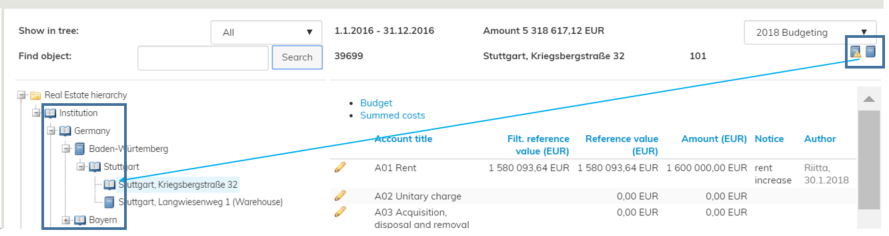
In the budget template, an open book appears in front of the site in the left-hand side of the real estate hierarchy to indicate that the site has not yet been budgeted. Once you have edited the costs for the site and saved the final costs, you can click on the icon on the upper right corner to indicate that the site has been budgeted. Then, the site is marked in the real estate hierarchy with a closed book symbol to indicate that the budgeting for this site has been finalized and you do not need to go back to it later. Also the pen icon next to the site’s name disappears. However, if the costs for the site need to be edited later, you can access the site by clicking the symbol of an open book that has now appeared in the upper right corner.
If the costs of a certain site are unclear and you need to get back to the budgeted costs later, you can mark the site as unclear by clicking on the icon. Once the budgeting is done, you can check the items marked with these symbols and verify that the costs for each budgetable site have been processed. By using these icons, you can go through the budget in several occasions and still be able to check straight away, how well the budget is coming together.
| Tip |
|---|
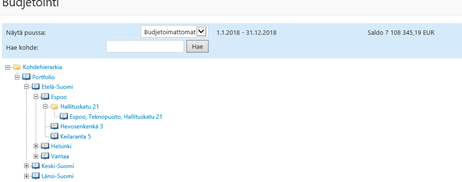
You can search for sites based on the icons described above by using the Show in tree pull-down menu on the upper part in the budget template.
You can select budgeted or non-budgeted sites, unclear sites or all sites. Now, the tree-like list shows only the filtered sites |
Budjettipohja on Optimazen budjetointityökalu, jossa itse budjetointi tapahtuu. Rapalin taloustuki luo budjettipohjan niiden tietojen pohjalta, joita asiakas haluaa käytettävän.
Budjettipohjan tietojen valinta
Aluksi on syytä miettiä, mitä pohjatietoa halutaan käyttää budjetin laadinnassa. Optimaze-järjestelmässä on mahdollista budjetoida tilakustannuksia useilla eri lähtötiedoilla. Budjetoinnissa voidaan hyödyntää ohjelmassa olevaa aiemman vuoden budjettia tai veloitus- tai toteumatietoja. Toteuma- tai veloitustietoja pohjatietona käytettäessä voidaan tarpeen mukaan käyttää yhden tai useamman kuukauden toteutumia.
Optimazeen on mahdollista myös tuoda budjetin tiedot Excel-tiedostolla. Tiedostossa tulee silloin olla tiedot riveittäin kohteesta, tilistä ja euromäärästä. Mikäli halutaan, on mahdollista myös avata tyhjä budjettipohja, jossa ei ole lainkaan kuluja. Silloin budjetin kustannukset syötetään alusta alkaen budjettipohjaan.
Kun on päätetty mitä tietoa käytetään budjetin pohjatietona, pyydetään Rapalin taloustukea luomaan budjettipohja halutuilla tiedoilla. Rapalin taloustuelle ilmoitus lähetetään osoitteeseen: tuki@optimaze.net.
Budjetointi budjetointityökalulla
Rapalin taloustuki luo halutuista tiedoista budjettipohjan, jossa budjetin työstäminen tapahtuu.
Budjettipohja löytyy ekopuolelta Budjetointi-otsikon alta
Huom. Periodivalinta on nyt Budjetointityökalun oikeassa yläkulmassa, sieltä näet mitä budjettipohjaa olet muokkaamassa.
Vain aktiivista ja avoinna olevaa budjettipohjaa voi muokata. Kun budjettiperiodi on ajettu ja lukittu, ei sen työstäminen ole mahdollista. Mikäli tulee tarve vielä muuttaa kustannuksia, voidaan periodi avata ja ajaa uudelleen. Mikäli halutaan säilyttää jo ajetun version tiedot, on syytä luoda uusi periodi ajetun periodin tiedoilla.
Budjetointityökalun summat ja otsikot
Budjettipohja työkalu näyttää aina sen tason eurot, jotka vasemmalta kohdepuusta on valittuna. Alla olevassa kuvassa Panorama Towerin rakennuksen kustannukset.
Budjetointi-otsikon alapuolella näkyvät koko Budjetin tiedot, ja siinä on myös Hae -toiminto, joka toimii kuten muutkin Optimazen hakutyökalut. Sinisellä tekstillä olevat Budjetti ja Summatut kustannukset vaihtavat näkymää siten, että Budjetti näkymässä tehdään varsinainen budjetin muokkaus ja Summatut kustannukset -näkymässä näet valitsemallesi tasolle tulevat kustannukset. Summauksessa on näkyvät siis myös kyseiselle kohteelle myös muilta tasoilta summatut kustannukset.
Budjetti näkymän sinisellä värillä olevissa otsikoissa ensimmäisenä vasemmalla on Tilinimike, joka ilmoittaa mitä kustannuksia rivillä näkyy. Ylhäällä näkyvä otsikko A01 Vuokrat, sisältää kaikkia tämän tilinimikkeen alla olevien tilien kustannukset.
Suodatettu vertailuarvo sarakkeessa ohjelmisto näyttää Eko-puolen periodivalinnassa valitun periodin kustannukset budjetoinnin avuksi. Jos haluat vaihtaa suodatettuun vertailuarvoon toisen periodin tiedot. Valitse Eko -välilehdeltä Periodin valinta valikosta haluttu periodi. Jos esimerkiksi halutaan vertailla nyt budjetoitavia kustannuksia edellisen vuoden budjettiin, on kätevää valita näkyviin edellisen vuoden budjetti.
Vertailuarvo -sarakkeessa näkyvät tälle budjetille pohjatietona tuodut kustannukset. Tämä summa ei muutu budjettia muokattaessa, joten voit koska tahansa verrata pohjatietoon Saldo -sarakkeessa näkyviä lopullisia budjetoitavia kustannuksia. Ennen muokkaamista Saldo -sarakkeessa näkyy sama summa kuin Vertailuarvosarakkeessa. Saldo-sarakkeen summa muuttuu sitä mukaa, kun muokkaat budjetin lukuja.
Summatut kustannukset-välilehden summat päivittyvät samalla, kun budjetoija muokkaa Budjetti -välilehden lukuja. Jos budjetoija syöttää kustannuksia esimerkiksi rakennuksen osille, voi hän helposti tarkastella koko rakennuksen kustannuksia Summatut kustannukset -välilehdeltä.
Jos halutaan budjetoida tilinimikkeille, joita ei löydy Optimaze Momentin tilikartalta, ilmoitetaan niistä Rapalin tukeen, joka lisää uudet tilinimikkeet Tilihierarkiaan.
Kun kohde ei ole voimassa koko budjettiperiodin ajanjaksoa
Mikäli kohde on voimassa vain osan aikaa budjettiperiodilla, näkyy tämä punaisella huomautustekstillä kohteen budjetointinäkymässä.
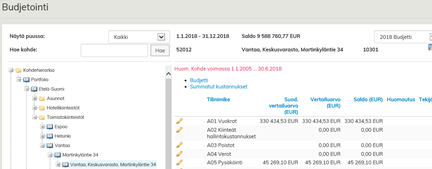
Osan vuotta voimassa oleva kohde näkyy budjettipohjalla punaisella tekstillä
Kohteen voimassaolo vain osan aikaa tulee ottaa huomioon budjettilukuja syötettäessä, ohjelma tuo vertailuarvon koko vuodelle budjetoijan tulee laskea näistä voimassaoloajan osuus.
Budjettilukujen syöttäminen budjettipohjaan
Budjetin lukujen muokkaaminen tapahtuu muokkaa työkalulla, jonka kuvake on  . Painamalla muokkaa painiketta, saat kyseisen tilinimikerivin käsiteltäväksi.

Kun olet muokannut lukua ja kirjoittanut haluamasi huomautuksen, paina Tallenna tai Peruuta -painiketta niitä varten olevilla kuvakkeilla. Mikäli haluat peruuttaa jo tallentamasi muutoksen ei tähän ole toimintoa, mutta voit syöttää uudelleen alkuperäisen summan ja tallentaa sen.
Tässä vielä budjettilukujen syöttö vaihe vaiheelta:
- Valitse Eko välilehdeltä vasemmasta päävalikosta: Talous -Budjetti/ennustepohja - Budjetointi
- Valitse sivun oikean yläkulman alaveto-valikosta oikea budjettipohja. Esim. vuoden 2018 budjettipohja.
- Valitse kohdehierarkiasta kohde, jonka kustannuksia haluat muokata. Huom! Jos suodatus on käytössä, avautuvassa puussa näkyvät vain ne kohteet, jotka suodatuksessa on valittu.
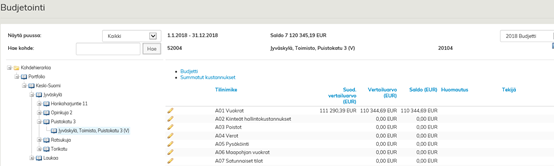
Budjetointinäkymä, kun suodatettuna kohdehierarkiasta Keski-Suomi
...

Kuvan tilanteessa on muutettu vuokrakustannusta. Kiinteitä hallintokustannusta ollaan parhaillaan muokkaamassa, seuraavaksi tallennetaan muutos painamalla √-kuvaketta.
Tietyn organisaation budjetoitavat kustannukset
Budjetin kustannuksia voidaan syöttää kohteiden lisäksi organisaatioille eli tilojen käyttäjille. Organisaatiokustannuksia käytetään esimerkiksi, jos halutaan korottaa jonkin organisaation tietyn tilinimikkeen kustannuksia.
Organisaatiokohtaiset kustannukset näkyvät kohdekustannusten alapuolella
Ylläolevassa esimerkissä on Panorama Towerin kirjanpitoyksikölle lisätty budjettiin organisaatiokohtainen vuokra 2000 euroa. Huom. kyseisen organisaation täytyy olla sijoitettuna kohteen tiloihin!
Budjettipohjan apukuvakkeet
Optimazen Budjetointityökalussa on apukuvakkeita budjetointiprosessin hallinnan avuksi. Budjettipohjalla näet kohdepuun vasemmalla puolella, kohteen edessä näkyy avoin kirja  merkkinä siitä, että kohde on vielä budjetoimatta. Kun olet muokannut kyseisen kohteen kustannukset ja lopulliset kustannukset on tallennettu, voit painaa oikean yläkulman
  merkitse budjetoiduksi –kuvaketta. Silloin kohteen kohdalle kohdepuuhun tulee suljettu kirja merkiksi siitä, että tämän kohteen osalta budjetointi on valmis, eikä siihen tarvitse enää myöhemmin palata. Tällöin kynä-työkalu poistuu näkyvistä tämän kohteen kohdalta. Jos kuitenkin huomaat myöhemmin, että kyseisen kohteen kustannuksia täytyy sittenkin muokata, voit palata siihen painamalla oikealla yläkulmassa nyt näkyvää avoin kirja -painiketta.
Mikäli kohteen kustannuksissa on jotakin epäselvää ja kohteen budjetoitaviin kustannuksiin tulee palata vielä myöhemmin. Voit painaa  merkitse epäselväksi –kuvaketta tästä merkkinä. Budjetoinnin valmistuttua voit vielä tarkistaa näistä käyttämistäsi kuvakkeista, että kaikkien budjetoitavien kohteiden kustannukset on läpikäyty. Kuvakkeita apuna käyttäen voit hyvin suorittaa budjetin läpikäyntiä useassa otteessa ja silti pystyt yhdellä vilkaisulla katsomaan, missä vaiheessa budjetin laadintaa olet.
...
. |