Creating and managing options
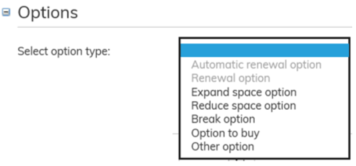
You can add options from the agreement form by clicking on Add... Select the option type from the pull-down menu.
Enter the option information on the agreement form.
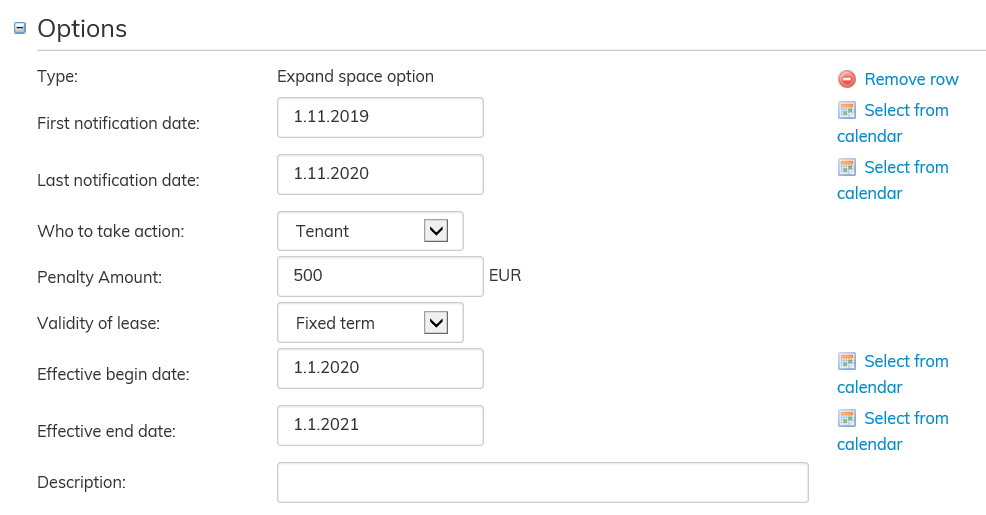
You can enter the dates or select them from the calendar.
Choose notification dates for the option. All options have first and last notification date, which allow you to define the timeline for the use of the option in question.
The option must be exercised during these days, so that it will become effective on the effective begin date specified.
Select the party who is to take action from the pull-down menu: Tenant, Lessor or Mutual.
For renewal options, select the validity of lease from the pull-down menu. A fixed-term validity requires an effective end date as well as an effective begin date. A validity until further notice requires a term of notice. If the term of notice is a period of notice, enter the period of notice for the tenant and the lessor.
A penalty amount can be set for all options for exercising or declining the option. These penalty fees are not included in invoicing.
If the agreement has already been saved and it is now being edited, all changes are saved automatically. Once you have entered all option information, click Back.
If the agreement being edited is a new one, save your changes before closing.
When the agreement has been finalized, options can be viewed in the agreement summary page on the Options tab.
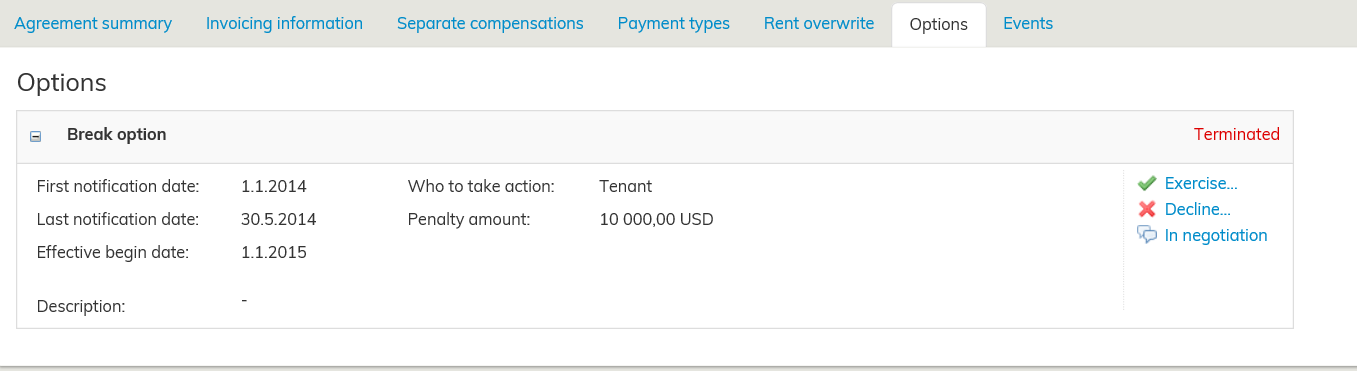
You can exercise or decline an option on the Options tab. You may also set the option state as In negotiation, if the decision is yet to be made, or reset the option to its original state.
The option state can be the following:
- Active: this is the initial state after the option has been created.
- In negotiation: a user has defined the option as being in negotiation.
- Exercised: the option has been exercised and is in effect.
- Declined: the option has been declined by a user and has no more effect on any functionality.
- Terminated: the last date for exercising the option has passed, but the option can still be treated like an active option.
- Obstructed: the option is prevented from being exercised by some other exercised option, due to conflicting dates, or because another option is preventing the functionality in some other way.
Automatic renewal option and renewal option
By means of renewal options, an agreement can be given several distinct periods of validity. The agreement is given renewal options that are either fixed-term or valid until further notice. Renewal options must be exercised during the first and the last notification date, in order to become effective on the effective begin date specified.
An automatic renewal option will be exercised when accepting the agreement. In this case, the agreement automatically continues after the lease term end date. On the agreement summary page, an automatic renewal option is included in the term of validity, i.e. the agreement end date shown is the renewal option end date. The rental areas are reserved also for the term of validity of the renewal option. An agreement can have several consecutive automatic renewal options.
If the option term does not begin on the day after the agreement or another option ends, the option is obstructed. An option is also obstructed, when its dates are in conflict with another option that has been exercised.
A (non-automatic) renewal option can be exercised to manually continue the agreement after the term of validity ends. The agreement can be set to continue after the term of validity either as fixed-term or until further notice. When exercising a renewal option, the system confirms that you wish to exercise the option. In addition, the system reminds you to create a rent correction document, if the rent changes upon exercising the option. Create a rent correction document from the agreement’s basic information view.
Option to expand or reduce space
With the option to expand or reduce space you can expand or reduce rental areas included in the agreement. Select the first and last notification date and define the timeline for exercising the option. You need to exercise the option to expand or reduce space during its effective begin and end dates.
When exercising an option to expand or reduce space, the system confirms that you wish to exercise the option. A change document must be created for the agreement when expanding or reducing space. Create a change document from the agreement’s basic information view. Spaces are added to the agreement or removed from it with the change document. Just exercising the option does not reduce or expand the rental area.
Break option
The agreement can be given a break option. This means that agreement can be terminated during the agreement term. Exercising the option terminates the agreement, so you can only exercise one option at a time.
Select the first and last notification date and define the timeline for exercising the option. Effective begin date allows you to determine when you wish to terminate an agreement. The option must be exercised, before you can specify the actual termination date of the agreement.
When exercising the option, the system prompts you for the date of termination. Enter the date and finalize the change. Finally, confirm that you wish to terminate the agreement. Just setting the effective begin date for the option, does not automatically terminate the agreement
Option to buy
Exercising an option to buy terminates the agreement, so you can only exercise one option to buy at a time.
Select the first and last notification date and determine the timeline for exercising the option to buy. Effective begin date allows you to determine when you wish to terminate an agreement. The option to buy must be exercised, before you can specify the actual termination date of the agreement.
When exercising the option, the system prompts you for the date of termination. Enter the date and finalize the change. Finally, confirm that you wish to terminate the agreement. Just setting the effective begin date for the option, does not automatically terminate the agreement.
Other option
In addition to the options listed above, a user can enter and name other options for the agreement. An agreement can have several other options
Optioiden luominen ja käsitteleminen
Voit lisätä optioita Sopimuslomakkeelta Lisää... painikkeella. Valitse option tyyppi alasvetovalikosta
Täytä lomakkeelle optioita koskevat tiedot.
Voit kirjoittaa päivämäärät itse tai valita päivät kalenterista.
Valitse optiolle käyttöpäivät. Kaikilla optioilla on ensimmäinen ja viimeinen käyttöpäivä, joilla määritellään optioiden hyväksymisen päivämäärärajat. Tämän ajan sisällä optio tulee hyväksyä, jotta se tulee voimaan määriteltynä option voimaantulopäivänä.
Valitse alasvetovalikosta vastuutahoksi vuokralainen, vuokranantaja tai molemmat.
Valitse uusintaoptioille voimassaolo alasvetovalikosta. Määräaikainen voimassaolo vaatii voimaantulopäivän lisäksi päättymispäivän. Toistaiseksi voimassa oleva tarvitsee irtisanomisehdon. Jos irtisanomisehto on irtisanomisaika, syötä sekä vuokralaisen että vuokranantajan irtisanomisaika.
Voit asettaa kaikille optioille kustannuksia, jotka aiheutuvat option käyttämisestä tai käyttämättä jättämisestä. Nämä maksut eivät siirry laskutukseen.
Muutokset tallentuvat automaattisesti, mikäli sopimus on jo tallennettu ja sitä muokataan. Kun olet syöttänyt optiot, paina Takaisin – painiketta. Mikäli kyseessä on uusi sopimus, tulee sopimus tallentaa.
Kun sopimus on hyväksytty, optiot näkyvät sopimuksen koontilomakkeella Optiot–välilehdellä.
Voit hyväksyä tai hylätä option Optiot-välilehdeltä. Voit myös määritellä sen tilaksi Neuvoteltavana, jos optioon liittyvä päätöksenteko on vielä kesken. palauttaa option alkuperäiseen tilaansa.
Option tila voi olla
- Käytettävissä; option alkutila kun se on luotu.
- Neuvoteltavana; käyttäjä on asettanut optiolle seurantatilan.
- Hyväksytty; optio on hyväksytty ja voimassa.
- Hylätty; optio on käyttäjän toimesta peruutettu, jolloin se ei vaikuta enää mihinkään toiminnallisuuteen.
- Päättynyt; option käyttömahdollisuus on päättynyt, mutta optiota voi edelleen käsitellä kuin aktiivista optiota.
- Estetty; option käyttäminen on estynyt jonkun hyväksytyn option toimesta, koska päivämäärät ovat päällekkäisiä tai toinen optio estää toiminnallisuuden jonkun muun säännön vuoksi.
Automaattinen uusintaoptio ja uusintaoptio
Jatko-optioiden avulla sopimukselle voidaan antaa useampi erillinen voimassaolo. Sopimukselle annetaan joko määräaikaisia tai toistaiseksi voimassaolevia uusintaoptioita. Uusintaoptiot tulee hyväksyä ensimmäisen ja viimeisen käyttöpäivän välisenä aikana, jotta ne astuvat voimaan määriteltynä option voimaantulopäivänä.
Automaattinen uusintaoptio hyväksytään sopimuksen hyväksynnän yhteydessä. Tällöin sopimus jatkuu automaattisesti päättymispäivän jälkeen. Koontilomakkeella automaattinen uusintaoptio näkyy koko ajalta eli sopimuksen päättymispäivä on uusintaoption päättymispäivä. Tilat tulevat varatuksi myös uusintaoption ajalle. Useita automaattisesti uusiutuvia optioita voi syöttää peräkkäin.
Mikäli optio ei ala sopimuksen tai toisen hyväksytyn option jälkeen seuraavana päivänä, optio on estetty. Optio on estetty myös silloin, kun option päivämäärät ovat päällekkäin jonkun hyväksytyn option kanssa.
(Ei automaattisen) uusintaoption avulla sopimus uusiutuu manuaalisesti sopimuksen päättymisen jälkeen. Sopimuksen voi kirjata jatkumaan päättymispäivän jälkeen toistaiseksi voimassaolevana tai määräaikaisena.
Hyväksyttäessä uusintaoptiota ohjelma varmistaa, että haluat hyväksyä option. Lisäksi ohjelma muistuttaa, että sinun tulee tehdä vuokranmuutosasiakirja, mikäli sopimuksen vuokra muuttuu option hyväksymisen yhteydessä. Luo vuokranmuutosasiakirja sopimuksen perustiedot – näkymästä.
Optio vuokra-alueen lisäyksestä tai vähennyksestä
Vuokra-alueen lisäys- tai vähennysoptiolla voidaan sopimuksen aikana lisätä tai vähentää sopimukseen kuuluvia vuokra-alueita. Optiolle määritellään sen voimaantulo- ja päättymispäivä. Vuokra-alueen lisäys- tai vähennysoptio tulee hyväksyä sille annetun ensimmäisen käyttöpäivän ja viimeisen käyttöpäivän välisenä aikana.
Hyväksyttäessä vuokra-alueen lisäys- tai vähennysoptiota ohjelma varmistaa, että haluat hyväksyä option. Tilojen muutosten yhteydessä tulee sopimukselle luoda muutosasiakirja. Luo muutosasiakirja sopimuksen perustiedot – näkymästä. Muutosasiakirjalla vähennät tai lisäät sopimuksen tiloja. Pelkkä option hyväksyminen ei siis vähennä tai lisää vuokra-aluetta.
Optio sopimuksen aikaisempaan lopettamiseen
Sopimukselle voi syöttää optio sopimuksen aikaisempaan lopettamiseen. Tällöin sopimus voidaan irtisanoa sopimuksen voimassa ollessa. Optio merkitsee sopimuksen irtisanotuksi, joten voit hyväksyä vain yhden option kerrallaan.
Optiolle valitaan ensimmäinen sekä viimeinen käyttöpäivä, jolloin se voidaan hyväksyä. Option voimaantulopäivämäärällä määritellään, milloin halutaan irtisanoa sopimus. Optio pitää kuitenkin hyväksyä, ennen kuin voidaan määrittää sopimuksen varsinainen irtisanomispäivä.
Kun hyväksyt option, ohjelma pyytää syöttämään päivämäärän, jolloin sopimus päättyy. Syötä päivä ja hyväksy muutos. Vahvista vielä, että haluat päättää sopimuksen. Pelkkä option voimaantulopäivämäärän asettaminen ei siis irtisano sopimusta automaattisesti.
Osto-optio
Osto-option hyväksyminen merkitsee sopimuksen irtisanotuksi. Näin ollen voit hyväksyä vain yhden osto-option kerrallaan.
Optiolle on valittavana ensimmäinen ja viimeinen käyttöpäivä, jolloin osto-option hyväksyminen on mahdollista. Option voimaantulopäivämäärällä määritellään, milloin halutaan irtisanoa sopimus. Osto-optio pitää kuitenkin hyväksyä, ennen kuin voidaan määrittää sopimuksen varsinainen irtisanomispäivä.
Kun hyväksyt option, ohjelma pyytää syöttämään päivämäärän, jolloin sopimus päättyy. Syötä päivä ja hyväksy muutos. Vahvista vielä, että haluat päättää sopimuksen. Pelkkä option voimaantulopäivämäärän asettaminen ei siis irtisano sopimusta automaattisesti.
Muu optio
...
.