Vuokrasopimuslomakkeen täyttäminen aloitetaan valitsemalla sopimuspohjaStart filling out the lease agreement form by selecting an agreement template.
Sopimuspohja
Organisaatiollasi voi olla käyttössä useita sopimuspohjia, jotka voit ladata tässä. Kysy pääkäyttäjältäsi mitä sopimuspohjaa kulloinkin organisaatiossasi käytetään.
Huomioithan, että organisaatiokohtaisten sopimuspohjien sisältö saattaa poiketa tässä esitetyistä sopimuksen otsikoista.
Logo
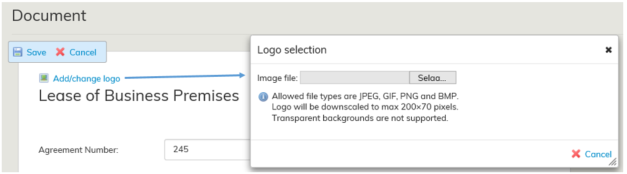
Voit lisätä vuokrasopimukselle näkyviin organisaatiosi logon. Sopimuksen oikeassa yläkulmassa näet Lisää/vaihda logo -työkalun, jota painamalla aukeaa ikkuna, jolla voit selata tietokoneeltasi haluamasi logon. Sallitut tiedostotyypit näkyvät avautuvassa ikkunassa. Tämä logovalinta vaikuttaa vain tähän luotavaan sopimukseen.
Asiakirjanumero
Optimaze antaa sopimukselle automaattisesti juoksevan kantakohtaisen numeron, mikäli tahdot voit ylikirjoittaa sopimuksen numeron haluamallasi.
Vuokrasopimuksen tiedot tulee ensimmäisen kerran tallentaa Tallenna painikkeella. Sen jälkeen kun palaat muokkaamaan luonnossopimusta, tallentuvat sopimukselle tehtävät muutokset automaattisesti.
Muutokset tallentuvat automaattisesti, mikäli sopimus on jo tallennettu ja sitä muokataan. Kun olet syöttänyt optiot, paina Takaisin – painiketta. Mikäli kyseessä on uusi sopimus, tulee sopimus tallentaa.
Sopimuslomakkeen tallentaminen
Sopimuslomake tulee tallentaa Tallenna painikkeesta ensimmäisen kerran, tämän jälkeen sopimuksen muutokset tallentuvat automaattisesti.
Kun olet tallentanut sopimuslomakkeen ensimmäisen kerran pääset muokkaamaan sitä sopimuksen koontilomakkeen Muokkaa toiminnolla.
Tallennettu sopimus on Optimazessa ennen sopimuksen hyväksyntää luonnostilassa ja hyväksynnän jälkeen sopimuksen tilaksi tulee Hyväksytty sopimus. Sopimuksen tila vaikuttaa mm. siihen, näkyykö sopimus raporteilla.
Agreement template
Your organization might have many agreement templates, which you can download here. Ask your administrator, what template is used in different situations in your organization.
Please note that organization-specific agreement templates might have different headers than the ones described here.
Logo
You can add your organization’s logo to the lease agreement. On the left-hand corner of the agreement, you can see the Add/change logo tool. When you click it, a window opens. In this window, you can browse logos in your computer and select the one you want. Allowed file types are listed in the window that opens. This logo selection affects only the agreement that is being created.
Agreement number
Optimaze gives the agreements a running, database-specific number automatically. If you want, you can overwrite the agreement number with another number.
The information in the lease agreement should be saved for the first time by clicking the Save button. When you return to edit the draft agreement, any changes made to the agreement are automatically saved.
If the agreement has already been saved and it is now being edited, all changes are saved automatically. Once you have entered all option information, click Back. If the agreement being edited is a new one, save your changes before closing.
Saving the lease agreement form
The lease agreement form should be saved for the first time by clicking the Save button. Subsequent changes to the agreement are saved automatically.
When you have saved the lease agreement form for the first time, you can edit it with the Edit function on the agreement summary page.
A saved agreement shows in Optimaze as a draft, until it is accepted. Once the agreement is accepted, its status changes to Accepted agreement.
The status of an agreement determines, for example, if the agreement is displayed on reports.
For a detailed description of the status of an agreement, see the instructions under Finalizing agreement Sopimuksen hyväksyminen -ohjeessa kerrotaan tarkemmin sopimuksen tilasta.