Mikäli vuokrakohteella on toinen vuokralainen, voit kirjoittaa vuokralaisen nimen tähänIf there is a second tenant in the premises, you can enter the tenant’s name here.
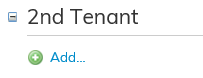
Paina ensin Lisää-painiketta. Tämän jälkeen voit hakea kentät 2. vuokralaisen tiedoille.

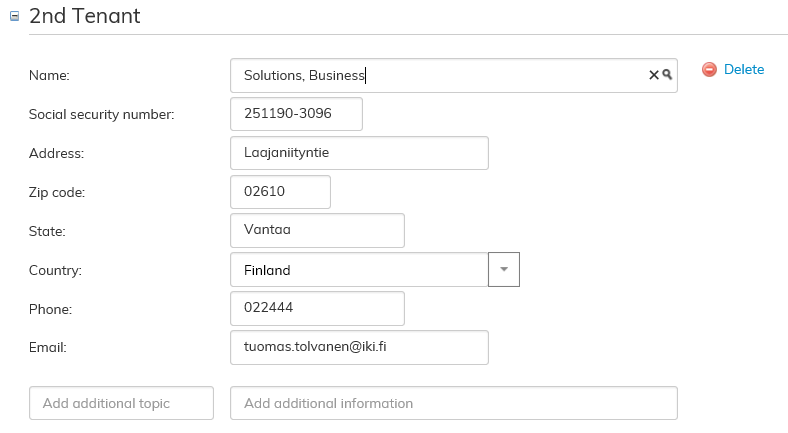
Valitsemalla valikosta haluamasi vuokralaisen, ohjelma tuo kyseisen vuokralaisen tiedot:
Mikäli hakemaasi vuokralaista ei löydy Optimazen vuokralaistiedoista avautuu sinulle seuraava näkymä:

Luo uusi vuokralainen painikkeesta pääset luomaan uuden vuokralaisen järjestelmään.
First, click Add. After this, you can search entries for the fields under the 2nd tenant.
By selecting the desired tenant from the menu, the software searches for the tenant’s information:
If the desired tenant cannot be found from the tenant information in Optimaze, the following view opens:
By clicking Create new tenant button, you can create a new tenant in the system.
For more detailed instructions on saving tenant information, see the section Managing tenant informationVuokralaisen tietojen hallinta -kohdasta löydät tarkemman ohjeistuksen vuokralaisen tietojen tallentamiseen.