An invoice that has already been processed can be entered into the system to keep invoicing and reporting information for the agreement up to date.
Click Enter a processed invoice on the right-hand side of the agreement summary page.
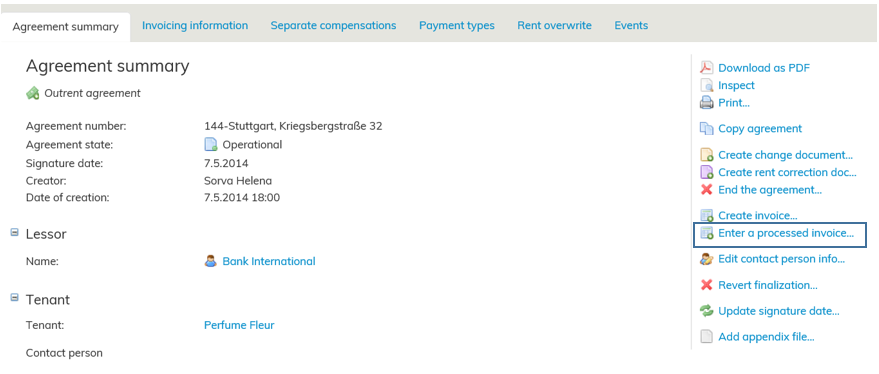
You can enter information on a processed invoice by clicking Enter a processed invoice... on the right-hand side of the main page.
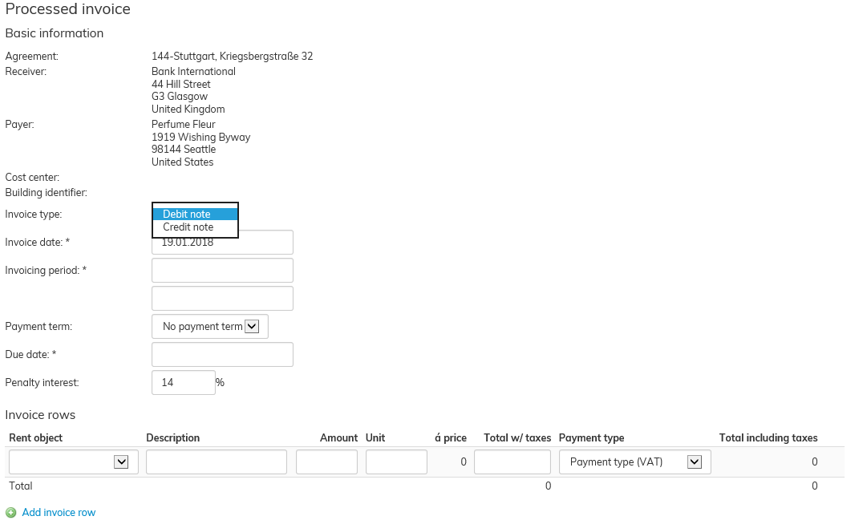
Enter the required information for the invoice:
1. Invoice type – select debit or credit note.
2. Invoice date and invoicing period – select the dates from the calendar.
3. Payment term (terms are managed in Lease management administration under Payment terms)
4. Due date – select the date from the calendar. If payment term has been selected for the invoice, the due date is automatically calculated based on the invoice date and the term.
5. Enter the penalty interest
6. Invoice rows – select the rent item for which the invoice row is to be allocated, enter a description, amount, unit and total without taxes. Select the payment type for the invoice row. Depending on the payment type, the invoice row will include or exclude tax. Several invoice rows can be added to a single invoice.
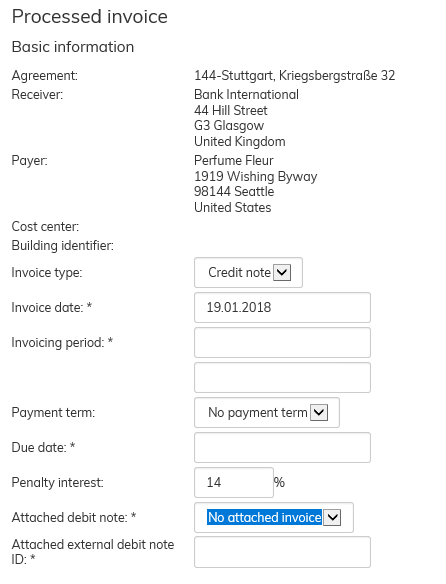
7. If the invoice created is a credit note, you can select an attached debit note for it or enter the id of an attached debit note.
8. When the required information is entered, click Create invoice.
9. The invoice is saved in the agreement information. You can view the created invoice on the agreement’s Invoicing information tab.
Credit note
Create invoice and Enter a processed invoice functions can also be used for creating a credit note. In this case, select Credit note from the Invoice type pull-down menu.
Similarly to a regular custom invoice, the invoicing details are added in the credit note.
When you select Credit note from the pull-down menu, you will be notified
in Invoicing information tab that the invoice is a credit note. You do not need to add the minus sign in front of the total.
| Tip |
|---|
Attached debit note data is optional by default. You can also select No attached debit note. If you want to have the information on the debit note mandatory when creating credit notes for your organization, you can contact Optimaze support. They can mark this information to be mandatory when validating invoices |
Järjestelmään voidaan syöttää jo laskutettu lasku, jotta sopimuksen laskutustiedot ja raportit pysyvät ajan tasalla. Syötä jo laskutettu lasku sopimuksen koontisivun oikeasta laidasta
Pääset syöttämään jo laskutetun laskun tietoja sopimuksen pääsivun oikean laidan painikkeella Syötä jo laskutettu lasku..
Syötä laskulle tarvittavat tiedot:
- Laskun tyyppi, valitse veloituslasku tai hyvityslasku
- Laskun päiväys ja laskutusjakso, valitse kalenterista päivämäärät
- Maksuehto, joita voidaan muokata Vuokrauksenhallinnan ylläpidosta kohdasta Maksuehdot
- Laskun eräpäivä, valitse kalenterista päivämäärä. Jos laskulle on valittu maksuehto, lasketaan eräpäivä automaattisesti laskun päiväyksen ja ehdon mukaisesti.
- Syötä laskun viivästyskorko
- Laskurivit, valitse vuokratuote jolle laskurivi halutaan kohdentaa, anna laskutustiedon otsikko, määrä, yksikkö ja veroton hinta. Lisäksi valitse maksulaji laskuriville. Maksulajin mukaan laskurivi on joko verollinen tai veroton. Laskurivejä voi lisätä useita.
- Jos luotu lasku on hyvityslasku, sille voidaan valita liittyvä veloituslasku tai syöttää liittyvän veloituslaskun tunniste.
- Kun tarpeelliset tiedot on syötetty, valitse Luo lasku
- Tiedot tallentuu sopimuksen tietoihin, voit tarkastella luotua laskuta sopimuksen Laskutustiedot -välilehdeltä
Hyvityslasku
Luo lasku ja Syötä jo laskutettu lasku -toiminnoilla voidaa luoda myös hyvityslasku. Silloin Laskun tyyppi alasvetovalikosta valitaan tyypiksi Hyvityslasku.
Hyvityslaskuun täytetään laskun tiedot kuten tavallisessakin yksittäislaskussa.
Kun alavetovalikolta valitaan Hyvityslasku, tulee laskutusaineisto -välilehdelle tieto siitä, että lasku on hyvityslasku. Miinusmerkkiä ei tarvitse erikseen summan eteen merkitä.
| Vinkki |
|---|
Liittyvä veloituslasku -tieto on oletusarvoisesti vapaaehtoinen, silloin voidaan valita Ei liittyvää veloituslaskua. Jos haluat, että organisaatiosi hyvityslaskuissa aina vaaditaan tieto laskusta johon kyseinen hyvityslasku liittyy, voit olla yhteydessä Optimaze tukeen, joka määrittelee laskujen validoinnissa tämän tiedon pakolliseksi. |