...
A new rental premise is created by entering the Type of rental premise (for example rental area), Name, Purpose of use, Rentability and optionally a Target rent (as a total amount or a unit price), and saving. On the Edit rental premise tab the same details of an existing premise can be changed.
Rental and parking areas in spaces
Rental areas and parking areas are connected to spaces the same way, with Edit → Space data… by selecting Rental area or Parking area as the type to edit.
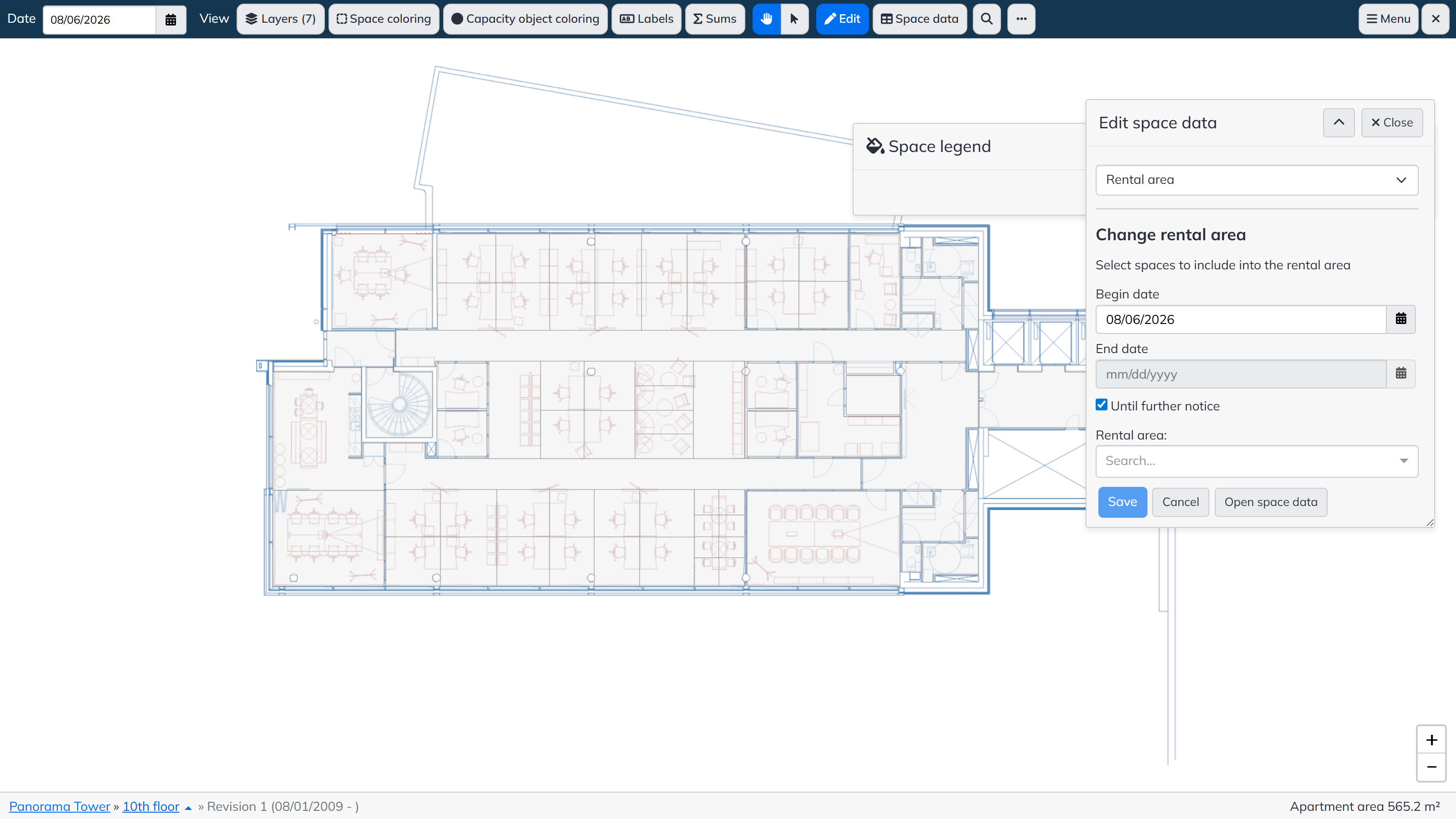
- In the Change rental area (or Change parking area) form, select the Begin date and the End date — or alternatively tick Until further notice — and search for the rental or parking area created in Lease in the Rental area corresponding field.
- Select the spaces in the floor plan that you want to include in the rental or parking area.
- Save. A space link is stored for the rental or parking area for the selected date range. You can view the stored space link via the rental area or parking area coloring.
The space link can be edited in the same way: select the rental or parking area to be edited and the new date range, then select the new spaces. After saving, the program applies the changes to the validity and selected spaces for the defined date range. Note! If the start date of the change is set before the end date of the previous definition, the earlier end date is overwritten, and the end date and selected spaces are stored according to the latest definition.
On the Lease side, rental and parking areas show the surface area summed through the space link according to the current day.
...
The floor plan browser’s Space coloring menu contains the Lease colorings, for example:
- Inrent agreements — colors the spaces by agreement, where the valid space link of the rental or parking area relates to an inrent agreement.
- Outrent agreements — colors the spaces by agreement, where the valid space link of the rental or parking area relates to an outrent agreement.
- Parking area — colors the spaces that have a parking area valid with respect to the selected date.
- Rental area — colors the spaces that have a rental area valid with respect to the selected date.
- VAT status — colors the spaces by the VAT status of the rental area.
...