...
In the virtual space register, you can see the virtual space data created, and add and edit certain features.

By selecting Registers and then Virtual floor register from the main menu, a register menu is opened in the workspace.Browse register window will open.
You can find detaled instruction of the function in Property and building register instruction

You can create and manage virtual spaces by selecting Virtual space register. 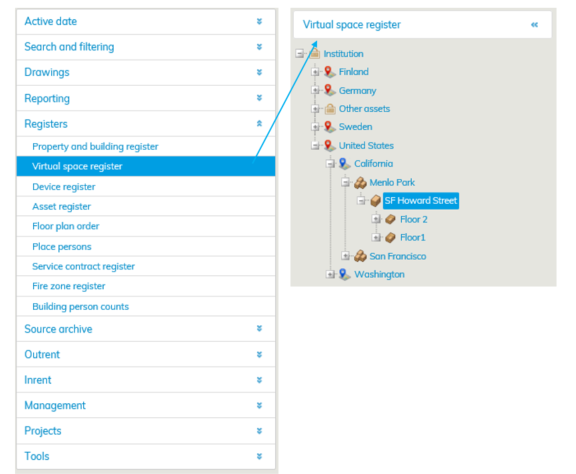 If you want to create a virtual space, select the building in the list or from the register tree.
Click Add virtual floor -button

If the building is not in the register tree, you can create a building under the selected property by clicking Add building button.
...
Click Add virtual space button.

Anna virtuaalitilalle tarvittavat tiedot; Tilan nro, Huoneala/Huoneistoala ja Työpisteiden lkm.
Valitse alasvetovalikosta Yhteistilankoodi sekä Tilaluokka. Lopuksi Tallenna tiedot.
Virtuaalitilat tallentuvat tietokantaan.
...
Kun virtuaalitilan neliömäärä on vähintään 1m2, näkyy se pohjakuvassa.
Alle neliön virtuaalitiloja ei voida näyttää.
Enter the information for the virtual space: Space label, Net area / rentable area, and Workstations, total.
Select Common space code and Space category from the pull-down menu. Save the information by clicking Save.
The virtual spaces are saved in the database.
| Tip |
|---|
When the net area of the virtual space is more than 1 m2, it is displayed in the floor plan. Virtual spaces smaller than one square meter cannot be displayed. |
Drawings for virtual spaces function like drawings imported from Master, with the exception of revisions, which are not available for virtual spaces.
You can access the Virtual space as any other floor plan via the drawings tree or with the Search function.
When you open the drawing for a virtual space, the system will show spaces in the drawing as boxes that have been generated according to the total floor area of the spaces.

You can edit virtual space data as any other space data with the floor plan browser.
You can add information (e.g. cost center, space number) in the same way as for regular spaces. Thematic maps, labels and other drawing functions are also available in virtual spaces.
Instructions on floor plans can be found under Help in the menu on the upper right corner of the floor plan browser.
Changes to the information in the virtual space register
If the virtual spaces need to have changes, a new virtual space must be created. You can define an end date for the space only when creating the space.
You cannot delete a virtual space or virtual floor partially; you must delete the whole space or floor. Remove virtual space button will delete the selected virtual space, and Delete floor button will delete the whole floor including all the virtual spaces it contains.
There are no revisions for drawings of virtual floors. The starting and end dates for virtual floor spaces are obtained from the starting and end dates for the building.
If you end the building, the spaces will also end. If you add spaces to virtual floors later, they will have the same starting and end dates as the spaces that have been entered before
Virtuaalitilojen Piirustukset käyttäytyvät piirustussovelluksessa samoin kun Masterista tuodut piirustukset, paitsi niillä ei ole revisiota.
Pääset Virtuaalitilaan samoin kuin muihinkin pohjakuviin piirustuspuusta tai haku-toiminnolla.
Kun Virtuaalitilojen piirustuksen avaa, järjestelmä generoi tiloille pinta-alojen mukaiset suorakulmiot, jotka näkyvät piirustuksessa.
Voit muokata virtuaalitilojen tietoja samoin kuin muidenkin tilojen tietoja pohjakuvaselaimella.
Tiloille voidaan lisätä tietoja kuin normaalille tilalle esim. kustannuspaikka, tilanumero. Samoin väritykset, tekstitykset ja muut piirustus-toiminnot ovat käytettävissä kuin normaaleissa piirustuksissa.
Pohjakuvan ohjeistus löytyy pohjakuvaselaimen oikean yläkulman Valikko otsikon alla olevan Ohje-painikkeen takaa.
Muutokset virtuaalirekisterin tietoihin
Mikäli virtuaalitilaan tulee muutoksia, joudutaan tilalle tekemään uusi Virtuaalitila. Tiloille ei voida määrittää päättymispäivämäärä muulloin kuin tilojen luomishetkellä.
Virtuaalitila/kerros on mahdollista vain poistaa kokonaisuudessaan. Poista virtuaalitila -painikkeella poistat kyseisen Virtuaalitilan, Poista kerros -painikkeella poistat koko kerroksen ja kaikki siinä olevat Virtuaalitilat.
Virtuaalikerroksien piirustuksilla ei ole revisioita. Virtuaalikerrosten tilat saavat alkamis- ja loppumispäivät rakennuksen voimassaolopäivämääristä.
Jos rakennus päätetään, niin myös tilat päättyvät. Jos virtuaalikerroksiin lisätään myöhemmin tiloja, saavat ne samat alkamis- ja loppumispäivät kuin aikaisemmatkin tilat.