Data grid is a tool that helps you to transfer information from the database into a table format. The information content of the data grids can be determined according to the customer.
The access rights determine which data grids each user or a user group can view.
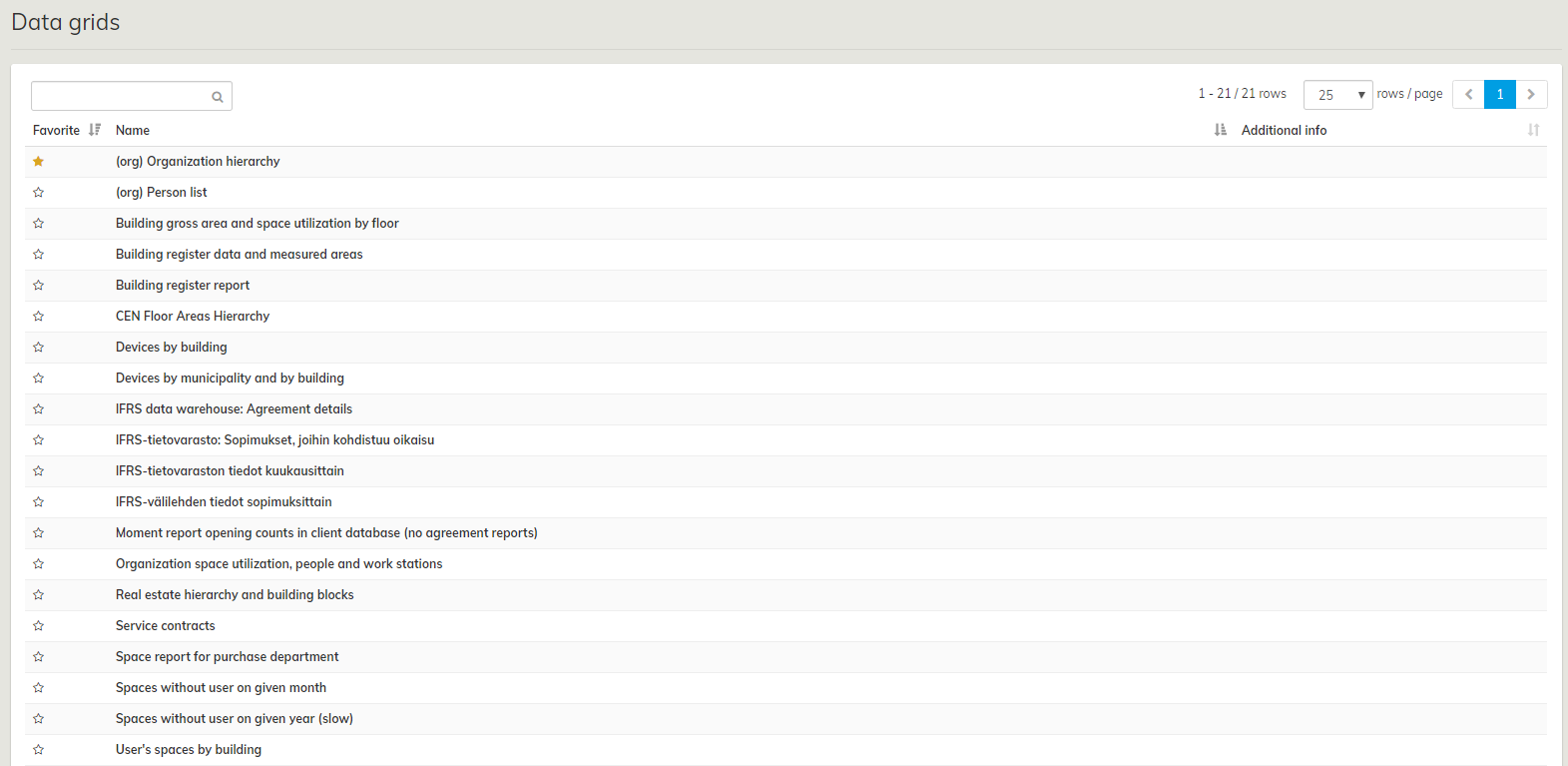
In the Data grid selection view all of the user’s data grids are directly visible in the list view. You can open a data table by selecting it from the list.
In the view, you can also search for data tables with a text search and mark tables as favorites. Data tables marked as favorites are shown at the top of the list the next time you navigate to the data table selection view.
A data table can also have an additional Further Information field describing its contents that will be shown in the data table selection view. Enabling this field for a data table is done by the service provider.
Data grid display view
You can access the data grid display view by selecting a data table from the selection view.
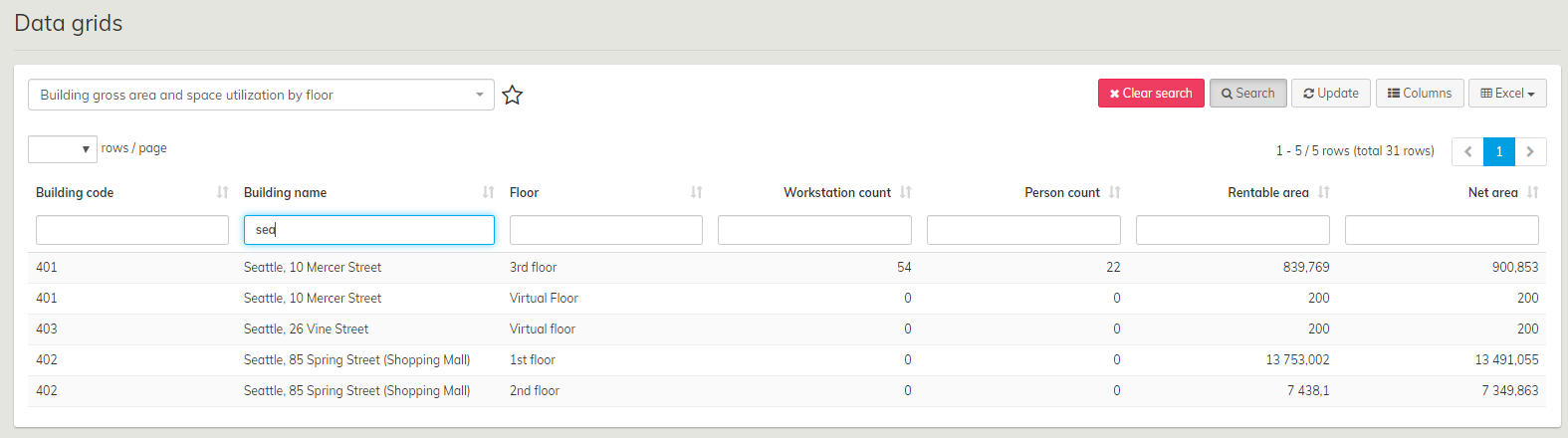
In the display view you can do the following operations for all data tables:
- Use any column you wish to order the contents of the data table in either ascending or descending order.
- Browse the data table contents with column specific text searches. Only rows matching the search criteria of the text search are shown.
- If necessary, you can update the data table contents with the Update button.
- You can hide and show data table columns with the Columns button. You can also save the default setting to be used in future sessions. All selections are user specific and they do not affect other users.
- You can export the contents of the data table as a file. Supported file formats are Excel and csv.
- You can mark the data table as a favorite the same way as in the data table selection view
- You can select how many lines are shown in the view (10, 20, 25, 100)
