In sections and Search and filtering you can find more information on searching and viewing an agreement.
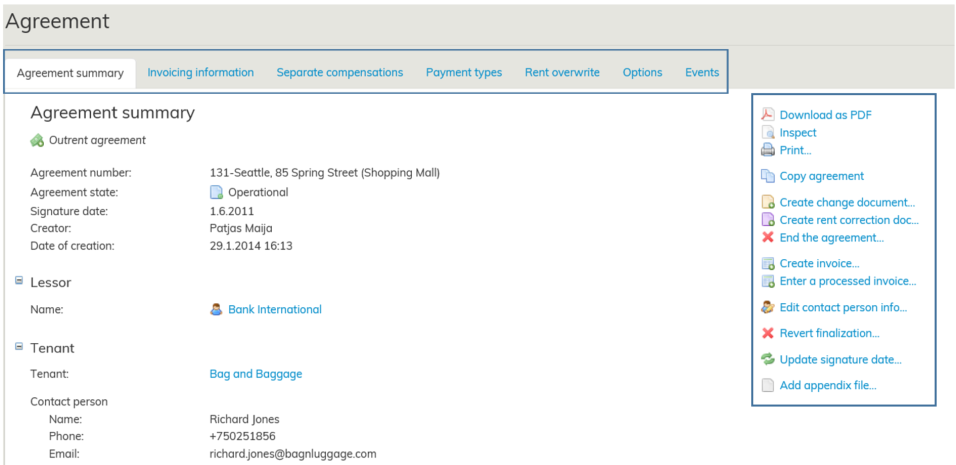
Once you have found the agreement you wish to view and you open it, an agreement summary page will open up.
In the agreement summary page, the information has been divided onto different tabs.
You can open the tabs simply by clicking the tab name with your mouse. You can view the agreement information under each tab.
On the right-hand side of the basic information page, you can find various function buttons.
For separate instructions on the tabs and function buttons in the agreement summary page, see the sections
Agreement information – tabs and Agreement information – tools.
The agreement illustrated above has been accepted and its state is Operational. The agreement state can be Operational only during the validity of the agreement.
If an agreement is accepted but begins only at the start of the next month, the agreement state is Beginning.
Similarly, expired agreements are in the Terminated state.
You can view agreement information of beginning, operational and terminated agreements on reports in the lease management either individually or as a group.
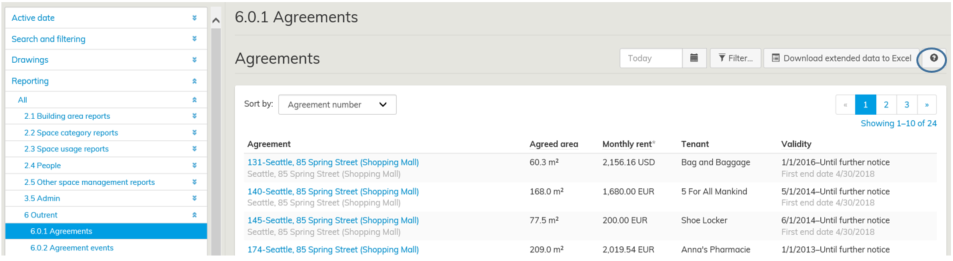
For more detailed instructions on reporting, click on the question mark on the right-hand side of the Reports view in Optimaze.
Draft agreements have not yet been accepted, so their information is not shown on reports.
Still, you can view these reports in agreement management. If you need a list of all draft agreements, you can search for them with the search function.
