The virtual space register can show floors and spaces in properties that have no floor plans available.
You can maintain, manage and update the virtual space data with the virtual space register.
In the virtual space register, you can see the virtual space data created, and add and edit certain features.
By selecting Registers from the main menu, a register menu is opened in the workspace.
You can create and manage virtual spaces by selecting Virtual space register.
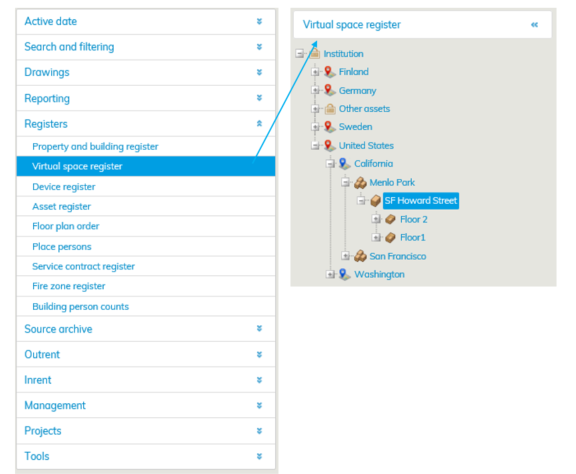
If you want to create a virtual space, select the building from the register tree.

If the building is not in the register tree, you can create a building under the selected property by clicking Add building button.
If you are creating a new building, enter the MasterName and Customer name.
The building in question is found under the MasterName from Rapal’s Master database.
It is recommended that you use the name of your organization (found in the top bar of Optimaze next to your name) and the building as the MasterName, so that you can easily find the building from the real estate hierarchy.

Here, the MasterName is DEMO ENG_Vantaa, Rental, because the building is in the DEMO ENG database and located at Hallituskatu 21 in Espoo. The Customer name is the MasterName without the database name. Then, enter the Code (accounting number, if you wish to allocate costs to the building) and the Begin date and determine, whether the property is budgeted or not. Select Save.
Then, enter the floor and give a descriptive name for it. Save.

After this, you need to add a virtual space or multiple virtual spaces for the floor.
Click Add virtual space button.

Enter the information for the virtual space: Space label, Net area / rentable area, and Workstations, total.
Select Common space code and Space category from the pull-down menu. Save the information by clicking Save.
The virtual spaces are saved in the database.
| Tip |
|---|
When the net area of the virtual space is more than 1 m2, it is displayed in the floor plan. Virtual spaces smaller than one square meter cannot be displayed. |
Drawings for virtual spaces function like drawings imported from Master, with the exception of revisions, which are not available for virtual spaces.
You can access the Virtual space as any other floor plan via the drawings tree or with the Search function.
When you open the drawing for a virtual space, the system will show spaces in the drawing as boxes that have been generated according to the total floor area of the spaces.

You can edit virtual space data as any other space data with the floor plan browser.
You can add information (e.g. cost center, space number) in the same way as for regular spaces. Thematic maps, labels and other drawing functions are also available in virtual spaces.
Instructions on floor plans can be found under Help in the menu on the upper right corner of the floor plan browser.
Muutokset virtuaalirekisterin tietoihin
Mikäli virtuaalitilaan tulee muutoksia, joudutaan tilalle tekemään uusi Virtuaalitila. Tiloille ei voida määrittää päättymispäivämäärä muulloin kuin tilojen luomishetkellä.
Virtuaalitila/kerros on mahdollista vain poistaa kokonaisuudessaan. Poista virtuaalitila -painikkeella poistat kyseisen Virtuaalitilan, Poista kerros -painikkeella poistat koko kerroksen ja kaikki siinä olevat Virtuaalitilat.
Virtuaalikerroksien piirustuksilla ei ole revisioita. Virtuaalikerrosten tilat saavat alkamis- ja loppumispäivät rakennuksen voimassaolopäivämääristä.
Jos rakennus päätetään, niin myös tilat päättyvät. Jos virtuaalikerroksiin lisätään myöhemmin tiloja, saavat ne samat alkamis- ja loppumispäivät kuin aikaisemmatkin tilat.
