Real estate and building information is maintained in the Property and building register.
Under ‘Registers’ in the main menu, select the ‘Property and building register’, which will open the ‘Browse register’ view.
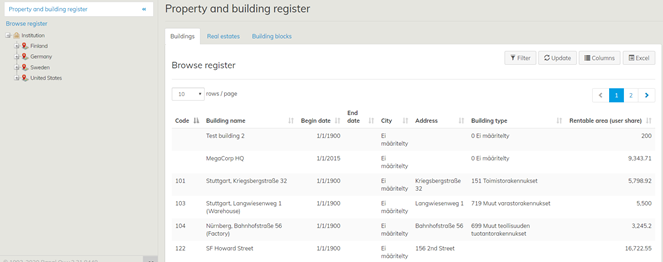
Using the ‘Browse register’ functionality, you can browse the contents of registers and navigate to the register data of each location.
When you open the Property and building register, the ‘Browse register’ view is opened as default, but you can also browse the register in the old way by clicking on the location tree on the left.
In the ‘Browse register’ view, you can filter the locations on the basis of start date, partial name, rentable area and so on. To activate the filter, click on the ‘Filter’ button.
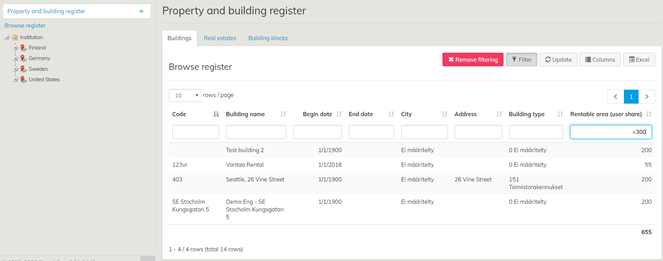
This example shows premises with a rentable area less than 300 square meters.
In addition to buildings, you can browse the register for other items (such as real estate and parts of buildings in the Property and building register).
You can change the search view in the ‘Browse register’ page by clicking on a tab title (blue font), which will open the tab of your choice.
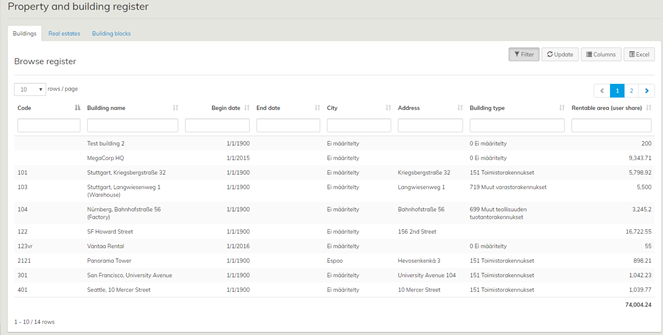
In the search view, you will be shown 10 rows per page as default. You can change the number of rows displayed from the drop-down menu.
To go to the next or previous page, click on the numbers or arrows on the right.
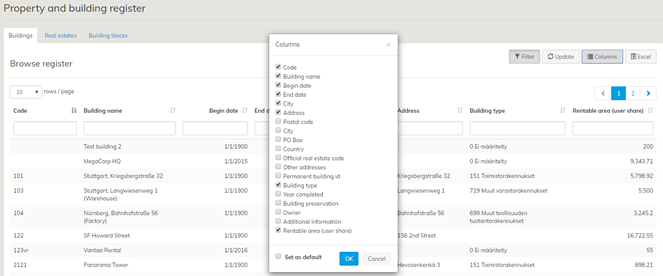
You can select which register data is shown in the ‘Browse register’ view. Clicking on the ‘Columns’ button will take you to a dialog box where you can select the information displayed. To unselect, click the item again. The selection is user-specific and will not affect the selections made by other users. To make your selection the default for yourself, tick the ‘Set as default’ option. You can import the data you have selected to Excel if you wish. To do this, just click on the ‘Excel’ button.
At the beginning of a session, when you open the ‘Browse register’ view for the first time, the information is stored in a cache. If the data in the register is edited by you or another user during the session, you can refresh the ‘Browse register’ view by clicking on the ‘Update’ button.
If you wish to return to the ‘Browse register’ view after viewing the register information, click the blue ‘Browse register’ button below the title bar.
The ‘Browse register’ functionality is enabled for all customers in the most important registers in the system, including the Property and building register. If necessary, it can also be enabled in other Optimaze registers, including customer-specific registers. If you would like to use the functionality in another register or change the default settings, please contact Optimaze Support via the ‘Support’ button on the Moment top bar.
Viewing and editing real estate and building information
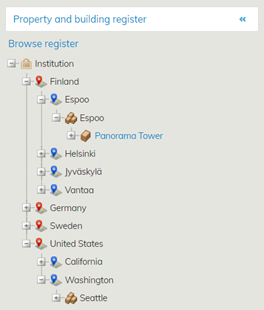
To view or edit information in the Property and building register, select the real estate or building (text in blue font) you want to view or edit from the location tree or navigation list.
An edit window opens, showing the information of the location selected.
The real estate icon in the location tree represents a building on a plot of land. Click on the name of the property to open the ‘Basic data’ tab.
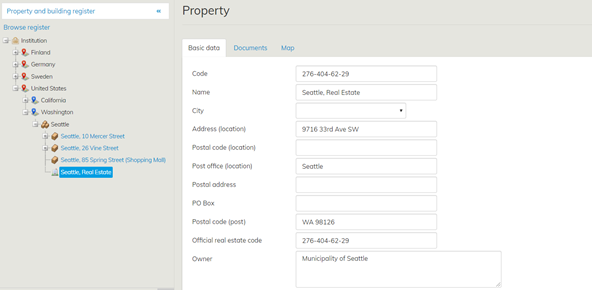
Click on the blue title text on the ‘Documents’ and ‘Map’ tabs to view the respective information. The real estate information is configurable and, therefore, varies by customer.
The building icon is a square depicting a house. Click on the name of the building to view the building information.
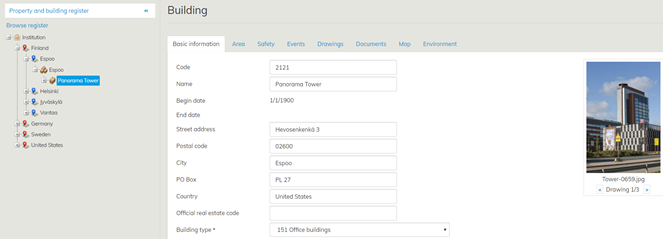
Building information fields vary by customer and can be modified according to the customer’s needs. All customers have the ‘Basic information’, ‘Area’, ‘Events’, ‘Drawings’, ‘Documents’ and ‘Map’ tabs
| Tip |
|---|
The information in the Code field is updated automatically also to the Object management. Based on the entry in the Code field, the financial information will be allocated to the right property during finance processing. |
