Adding new employees to organization
Select Organization hierarchy, and different levels of organization hierarchy will open up. Go to organization level 6.
A blue text Add employee appears in the bottom of the page.
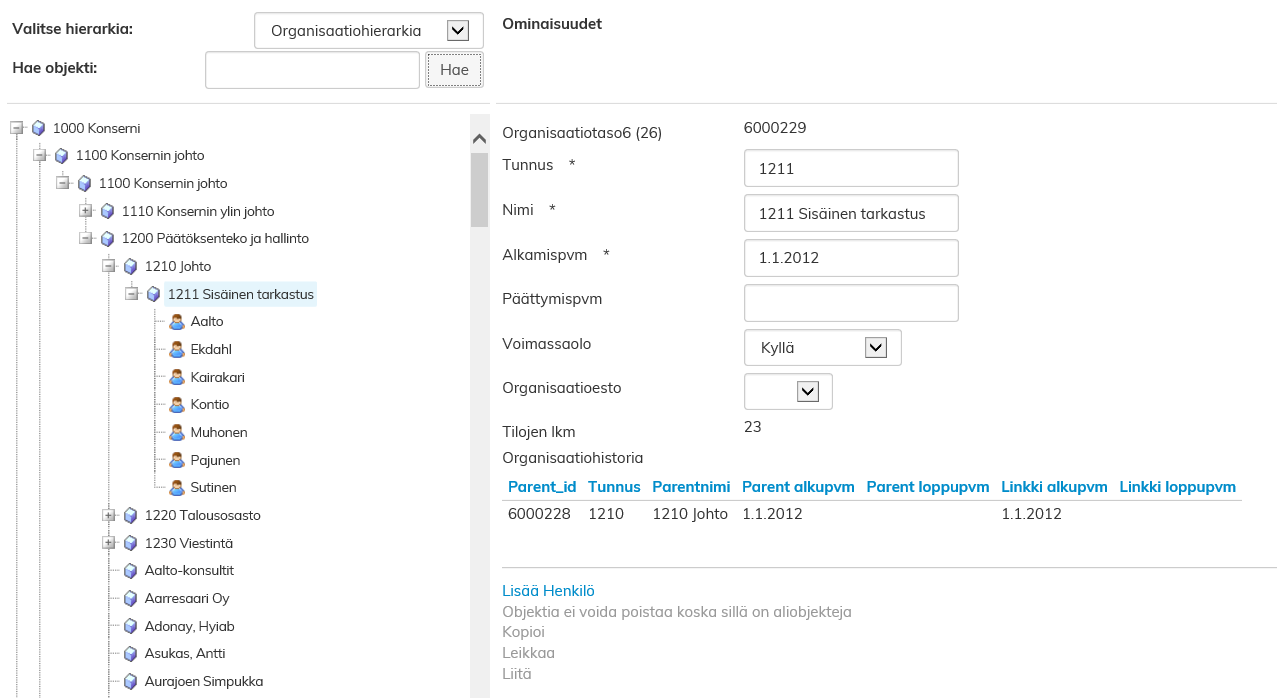
Fill out the person's information in the window that opens. Once you are ready, click Save.
Changing employee properties
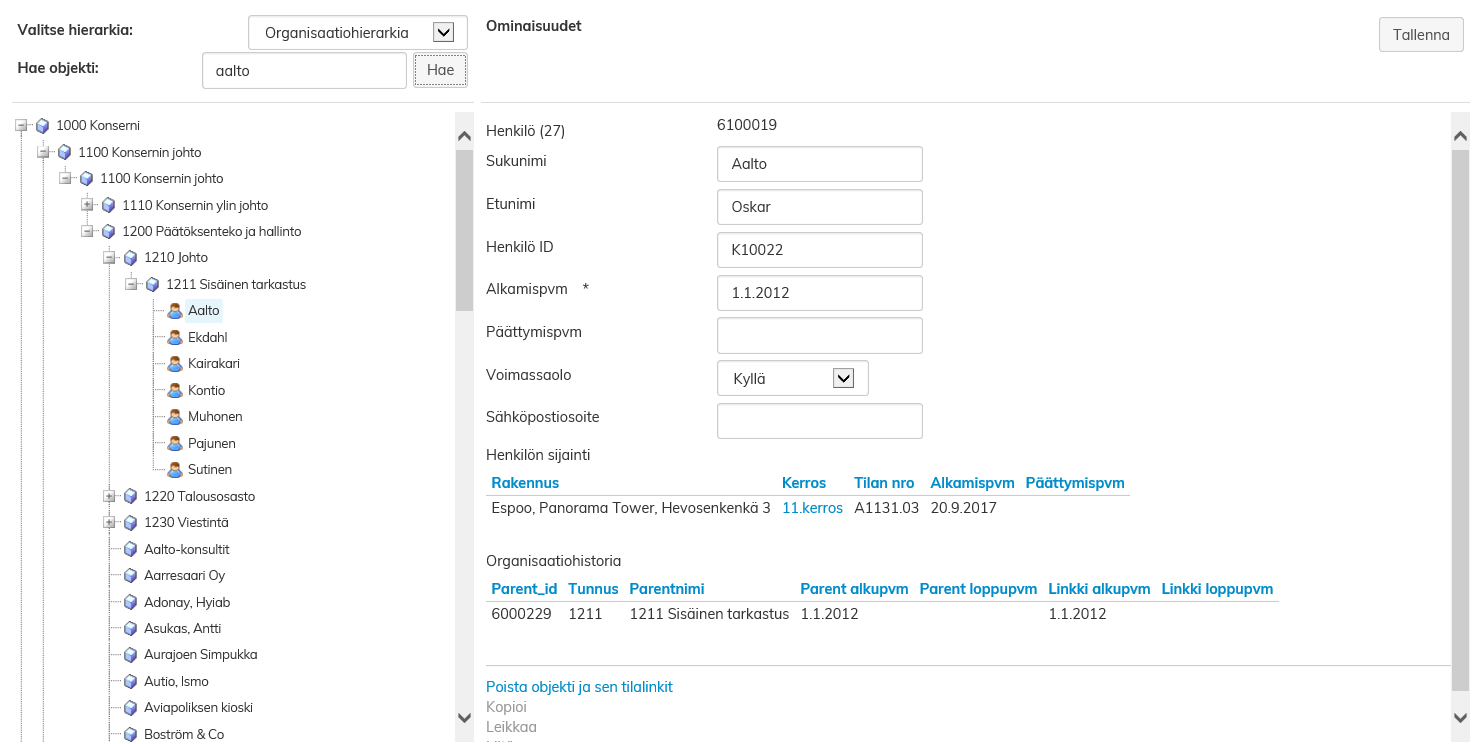
Search for the employee from organization level 6. You can search for the person by last name in Search for object field or by browsing the organization tree.
Current employee information will open up on the right side of the window. Change the desired information and when you have finished, select Save.
Deleting an employee from an organization
Select the person you want to delete from the organization hierarchy. You can search for the person by last name with the Search for object function or by browsing the organization tree.
Current employee information will open up on the right side of the window. Below the employee information, select Remove object and its space links.
| Note! |
|---|
By removing a person in object management, you remove the person entirely from Optimaze. If you want to delete the employee only from a certain space, you can do it via the floor plan. |
