When finalizing an agreement that have spaces that are already rented in different agreements, a notification on overlapping is shown.
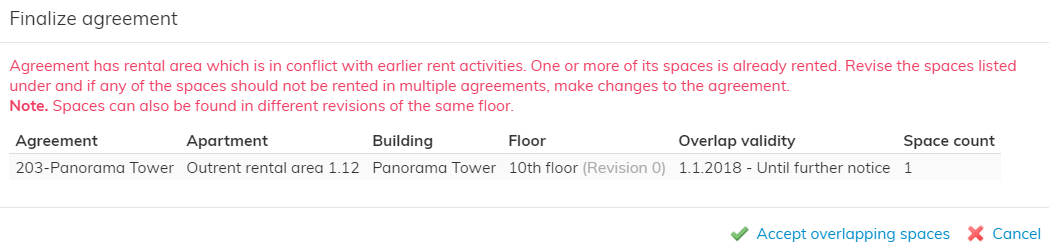
The notification lists the overlapping spaces and shows in which agreement/building/floor/revision the space is.
If any of the listed spaces should not be rented in multiple agreements, make changes to the agreement and/or rental area.
If all listed spaces are supposed to be rented in multiple agreements, click ‘Accept overlapping spaces’ and continue the finalization process.
You can also edit an agreement that has already been signed and accepted.
For instance, if you want to add or delete single rental areas or change agreement terms (like the rent period or rent adjustment terms), you need to create a special change document for the agreement.
Select Create change document or Create rent correction doc on the right of the agreement summary page.
You can use the rent correction document to change terms related to rent, or the rent itself. The details relating to rent adjustments agreed upon in the agreement are not included.
You can also edit accepted and signed agreements to correct faults. Select Revert finalization on the right of an accepted agreement or click Edit draft agreement.
Any changes to the approved agreements are primarily made with a change document.
For more detailed instructions, see the section Change document and Rent correction document.
When editing the draft agreement, any information entered will be saved automatically, so no additional saving is required. Once finished, return to the agreement summary page by clicking Back.
The signature date can be edited by selecting Update signature date on the right and by entering the correct date in Agreement signature date field.
