Selecting a payment type for an agreement
To determine a payment type for an agreement, go to the Payment types tab on the Agreement summary page. A separate payment type may be chosen for each rent item.
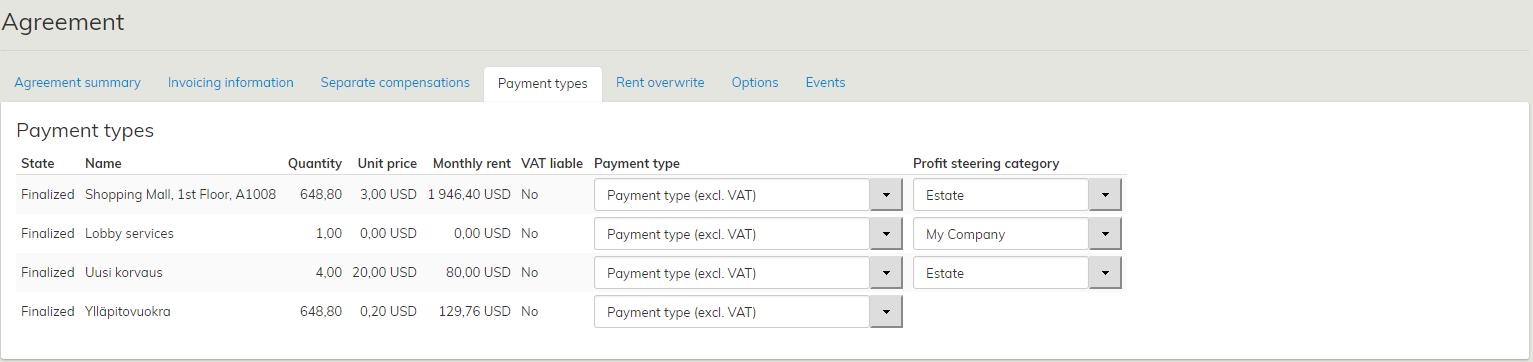
The payment types displayed are those specified on the lessor or tenant summary page.
Also the payment types of a draft agreement can be edited in the Payment types tab.
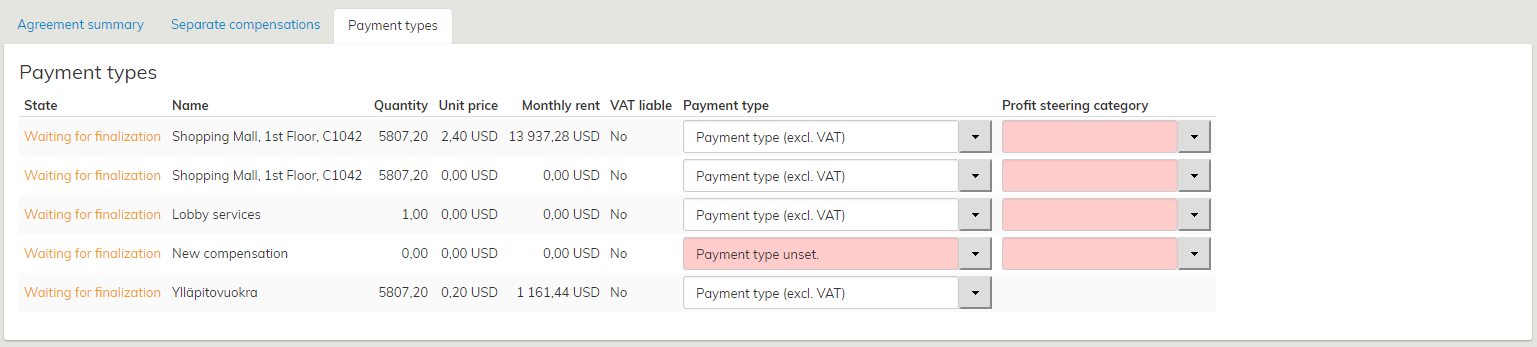
In the Payment types tab of a draft agreement, the user is notified that the agreement is not yet operational.
Thus, the payment type information will not yet be included in the invoicing integration, if such system is used in your organization.
Payment types for objects of lease
Select a payment type for each rental area and separate compensation added to the agreement. The purpose of determining payment types is to ensure that the income is allocated correctly in the organization’s accounts payable and receivable.
The payment type is determined under the party information – under tenant information in case of inrent, and under lessor information in case of outrent. However, the payment type can be changed whenever a new agreement is drawn up.
Start creating a new payment type by selecting the Payment types tab in the Managing tenant/lessor information section. Add a new payment type by clicking on Add under Payment types.
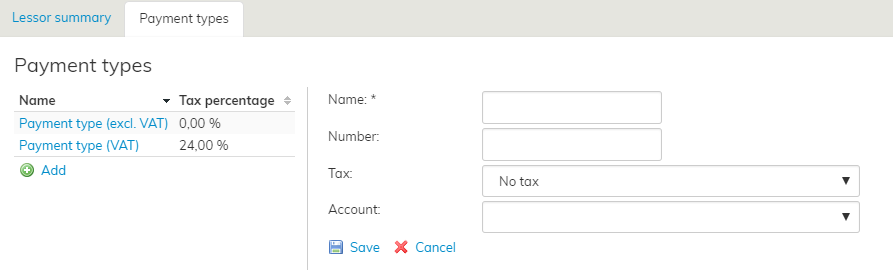
Fields for the payment type details will appear beside the payment type list. Required information: Name, Number, Tax and Account.
Once you have filled out all the fields, select Save. To edit an existing payment type, select it on the list and edit the fields that appear.
Once finished, select Save. If you want to delete the payment type, click Remove.
Adding a tax to a payment type
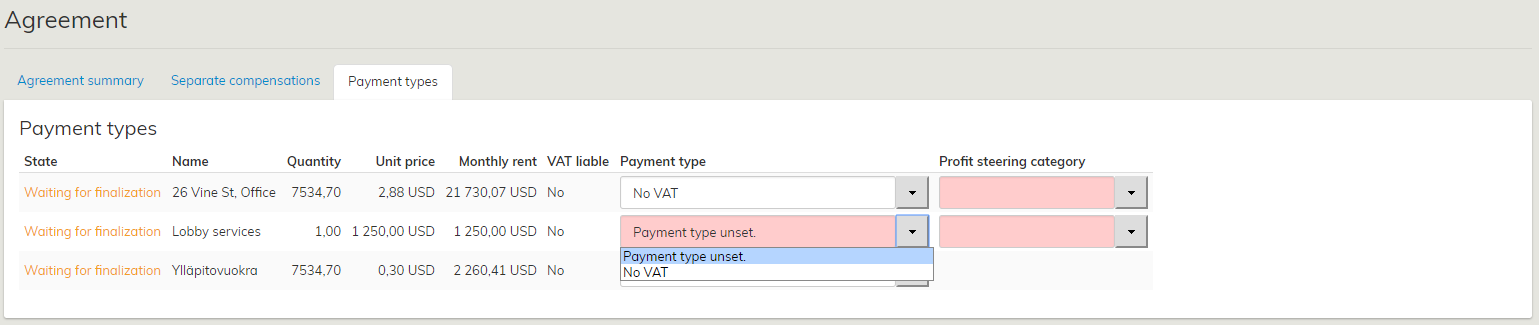
When a new tax has been entered into the system, it must be added to the appropriate payment type.
Selectable payment types are maintained under Taxes in lease management administration.
In lease management, select the tenant or lessor, whose payment types you wish to edit.
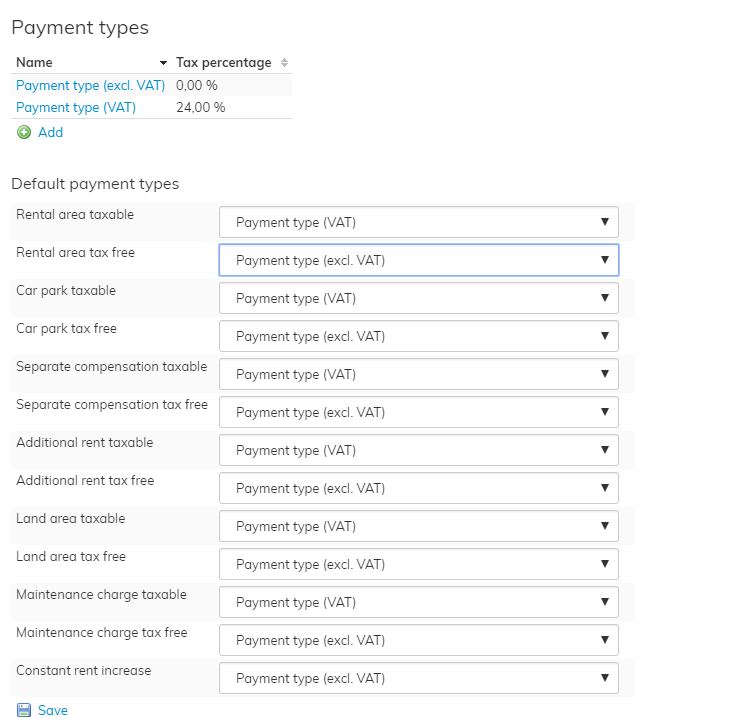
- Open a payment type for editing by clicking on its name, e.g. Rental area taxable.
- Select the tax from the Tax pull-down menu. (Taxes are entered in the system on the Tax management page.)
- When you have selected the appropriate tax for the payment type, click Save.
Updated taxes for payment types can be viewed on the Payment types tab on the Agreement summary page.
