| Info |
|---|
You must have a Space management role in EG Optimaze to manage capacity object types |
Capacity objects represent work desks, rooms or spaces in the workplace.
...
You can edit capacity object types in Optimaze Space. Your database will have a list of default capacity objects, you can use them or add your own types.
You must have Space management role in Optimaze Portal.
Instructions
Capacity object types are default. You can edit them as you like for your workplace needs. The capacity objects have main and subtypes.
Table of Contents
How to edit capacity object types
- Log in to EG Optimaze
- Navigate to Space application
- Click Administration -tab and select Capacity object types
- Click +
1. Log in to Optimaze Portal
2. Go to Optimaze Space and choose ‘Capacity object types’ -tab
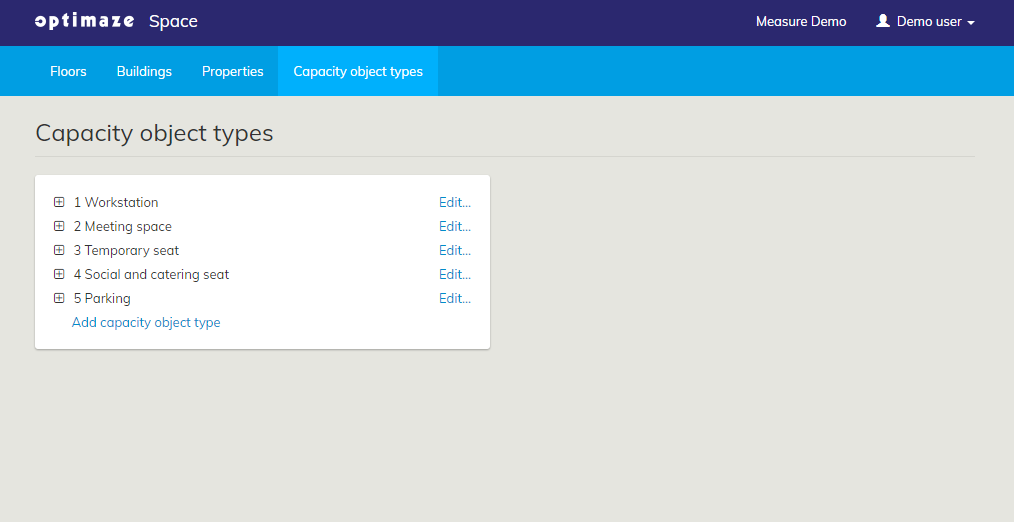
3. The Capacity object types have a main type and subtypes
...
- next to the main type to see
...
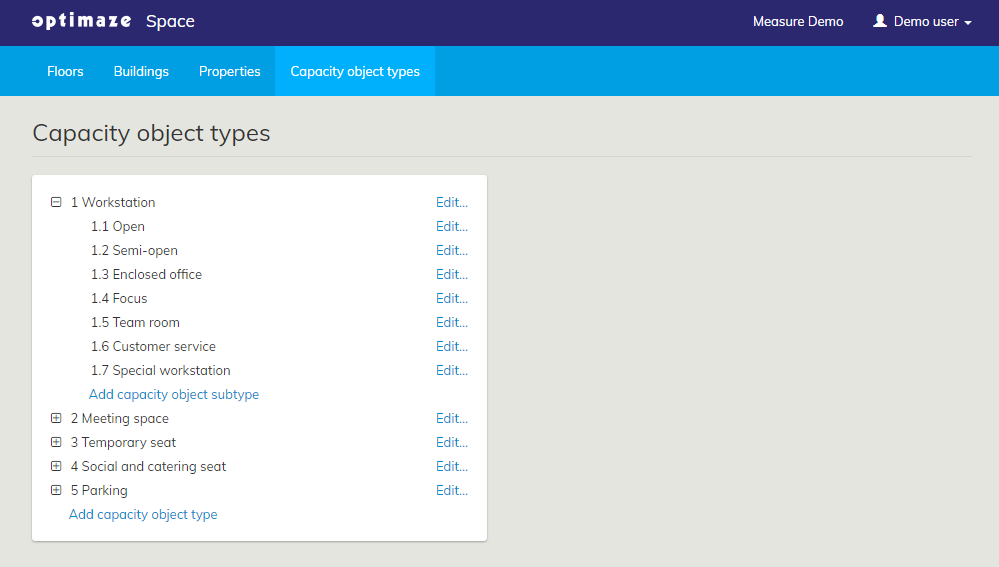
...
- its subtypes
- Click Edit.. to make changes to the main or subtypes
Adding reporting type
Reporting type can be added only for main capacity object types.
- Click Edit.. next to main
...
Read more about
...
- capacity object type
Select a reporting type from the drop-down list
Select Meeting space as a reporting type, if you are using meeting room booking feature
- Select Workstation as a reporting type, if you are using workstation booking feature
- Select Phone booth as a reporting type for phone booths
Select Restaurant as a reporting type if you are using restaurant sensors
- Click Save
Adding time delay
Time delay means the duration how long a sensor-monitored place (e.g. meeting room, workstation, parking spot) is shown as recently occupied in EG Worksense. Generally speaking the time delay gives a signal to an employee that the room or seat has recently been in use.
Time delay is set for a capacity object main type or its subtype.
- Click Edit.. next to main capacity object type or its subtype
- Add Time delay
- Click Save
Time delay for a capacity object main type will automatically be applied to its subtypes
| Info |
|---|
Best practices for choosing the duration for time delays:
|