In the Agreements section you create and manage rental agreements. A saved agreement is first a draft, which can be edited freely. After the agreement has been approved (signed), its status becomes Valid. The status affects, among other things, reporting: draft agreements are not included in reports.
The agreements list
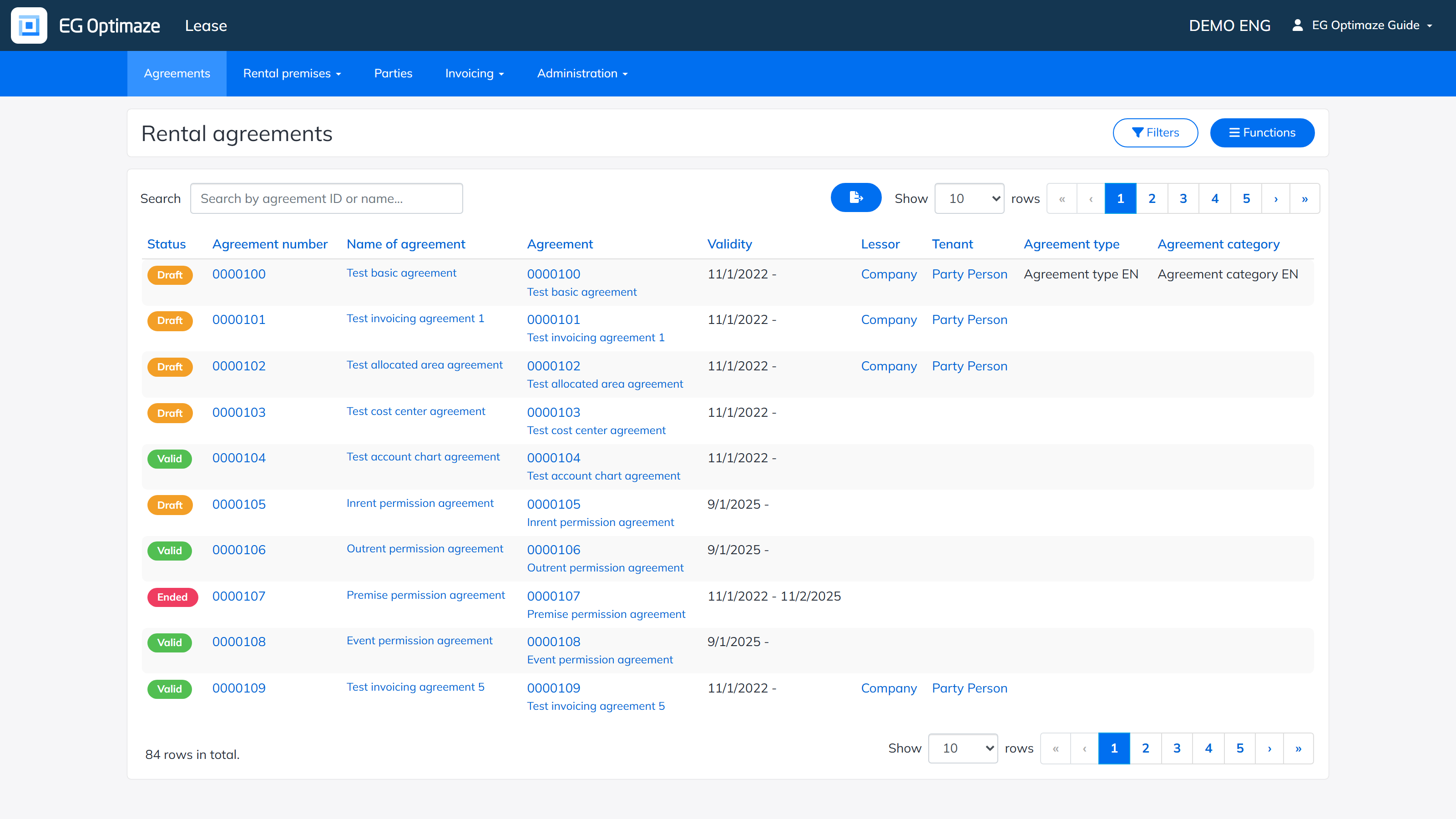
Open Agreements in the navigation bar. The list shows all rental agreements of the company with their Status (Valid, Draft, Ended), Agreement number, Name of agreement, Validity, Lessor, Tenant, Agreement type and Agreement category. You can search by agreement ID or name, narrow down the list with Filters and sort it by clicking the column headers. Open an agreement by clicking its name in the list.
Creating a new agreement
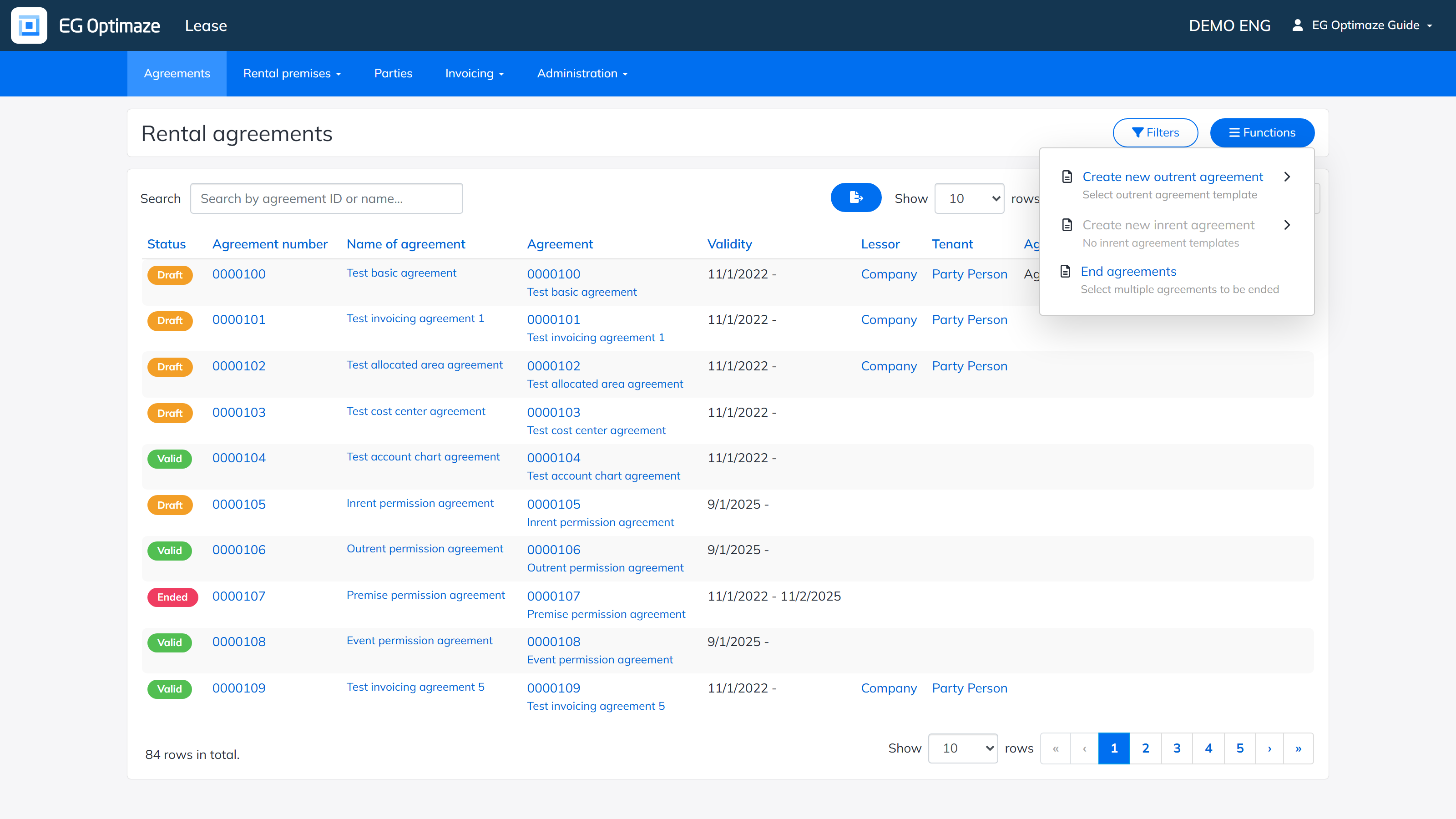
A new agreement is created from the Functions menu in the upper right corner of the list by selecting Create new outrent agreement or Create new inrent agreement. The selection opens the agreement templates that are in use; choose the template you want to use. Templates are maintained in the Administration section.
Remember to save a new agreement early on and several times while entering the details, so that no unsaved information is lost. Saving creates a draft agreement.
Viewing and editing an agreement
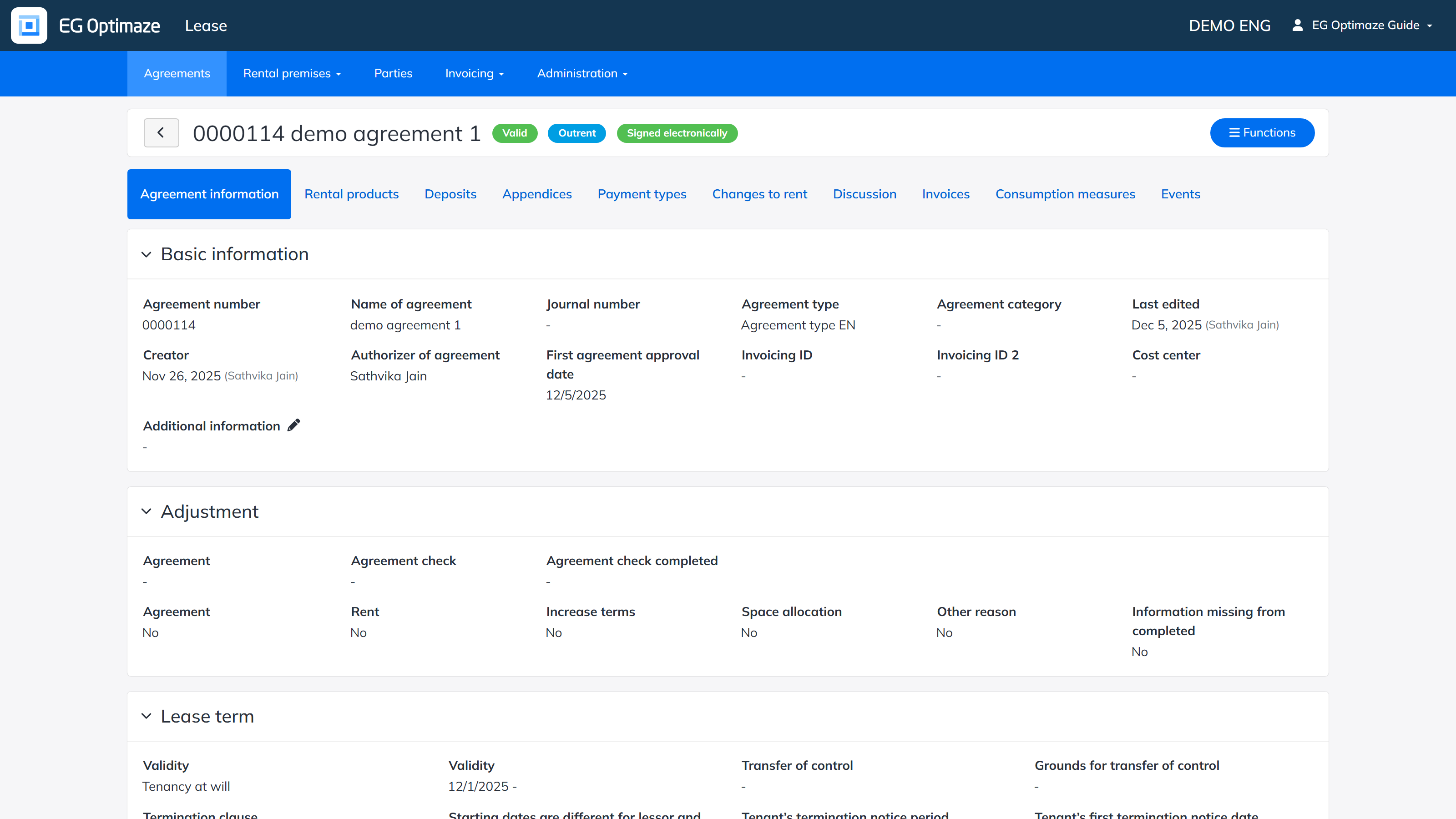
An opened agreement shows a summary of the agreement details. The tabs at the top collect the different aspects of the agreement: Agreement information, Rental products, Deposits, Appendices, Payment types, Changes to rent, Discussion, Events, Invoices and Consumption measures.
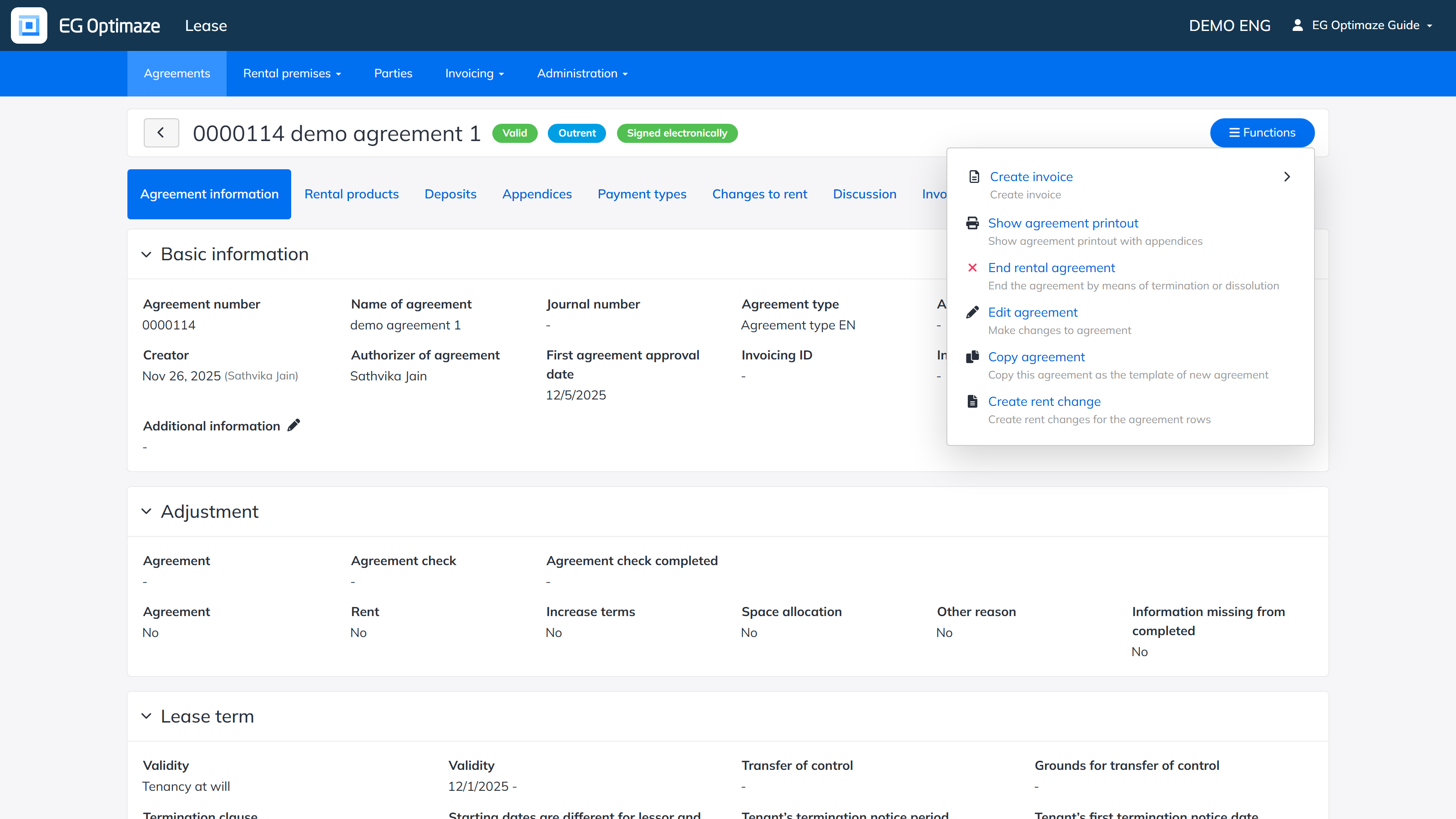
The Functions menu of the agreement contains the main actions:
- Create invoice — create an invoice for the agreement (see the Invoicing section).
- Show agreement printout — show the agreement in print format with its appendices.
- End rental agreement — end the agreement by means of termination or dissolution.
- Edit agreement — make changes to the agreement details.
- Copy agreement — copy this agreement as the template of a new agreement.
- Create rent change — create rent changes for the agreement rows.
- Sign agreement — approve the agreement manually or electronically via the SignSpace service; see Electronic signing of the agreement.
If a draft agreement has incomplete details, the shortcomings are shown as a yellow triangle in the top bar when editing. Hovering over the triangle shows where in the agreement the errors are.
The pages in this section cover the agreement details and tabs:
